show your qr code at the gate
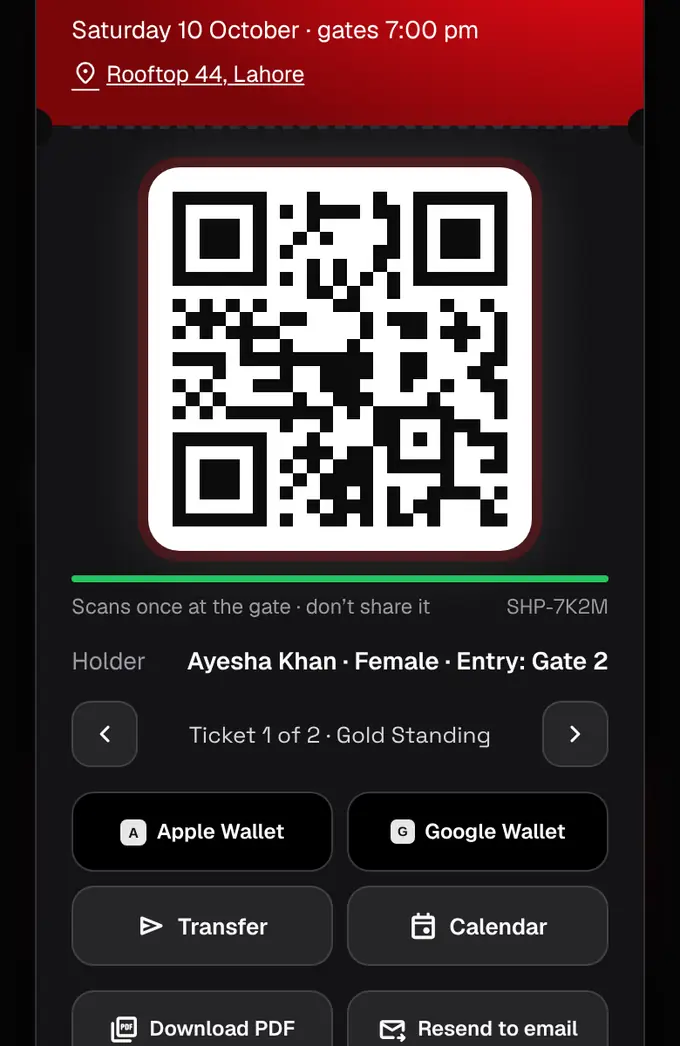
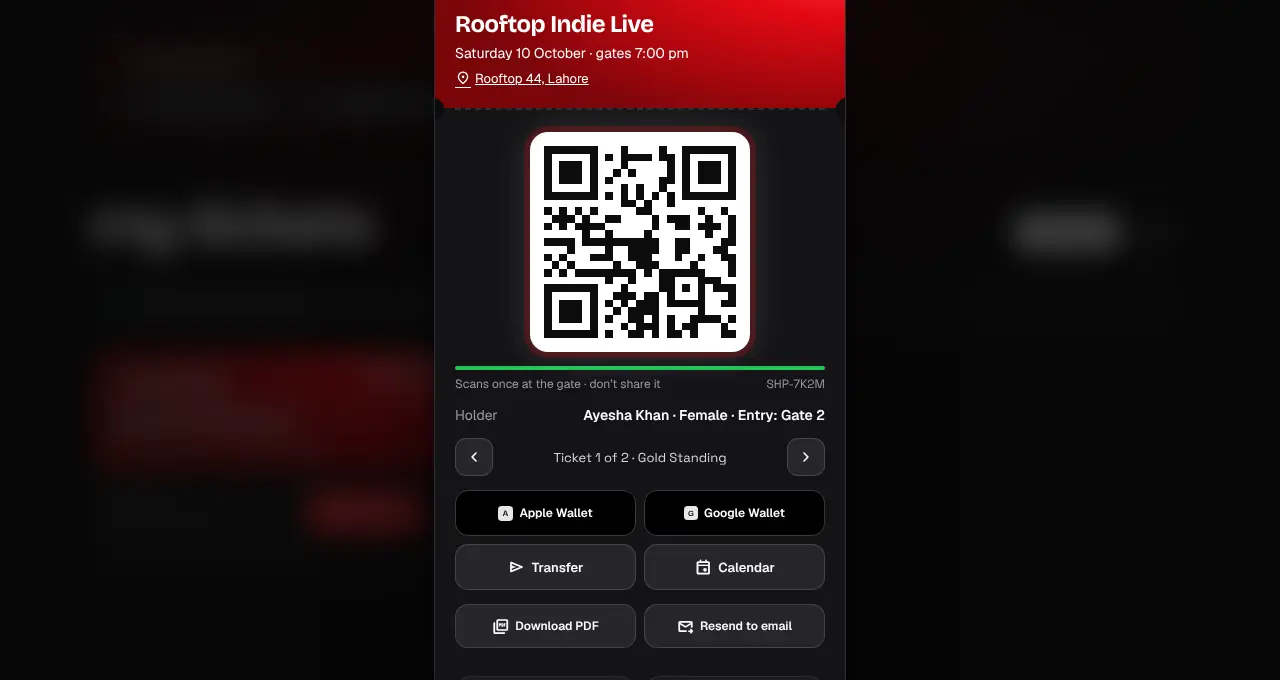
Open the ticket and show its QR. Each ticket scans once, so keep it to yourself.
- 1
Open My tickets and tap Show QR on the order. Turn your screen brightness up.
- 2
Show the QR to the gate staff. If the order has several tickets, each person shows their own: use the arrows to switch.
- 3
Once scanned, that ticket is used. Any copy of it will show “already scanned”, so never share your QR or post it online.
- Official partner tickets have no QR of ours: show the partner’s PDF at the venue entrance instead (see Official partner tickets).
- The QR hides when you leave the page, to stop screenshots; come back to the page to show it again.
- Your ticket may name an entrance, like “Entry: Gate 2”. Use that gate.
- The same QR is on your PDF and in Wallet, so any of them works.
Was this helpful?
related
qr_code_scannerTap your phone to enter (Android)In the shapargullay app on Android, your phone can tap the gate phone instead of showing the QR.qr_code_scannerMy phone died at the gateThe help desk can find your ticket by your name or phone number and check you in.confirmation_numberDownload your ticket PDF or get it emailed againEvery ticket comes as a PDF by email, and you can download or resend it any time.
Still stuck?
didn’t find what you need?
smart_toyAsk ShappyOur assistant answers straight away, with live dates, prices and your orders.chatOpen the chat
support_agentContact supportTalk to a person. We reply within one working day. WhatsApp takes messages (not calls), and each chat gets a support reference.