scan tickets in a browser (/scan)
Use a laptop or tablet at the gate: open /scan, then approve the browser in the Organizer app.
- 1
On the gate laptop, tablet or phone, open shapargullay.com/scan and log in with your organizer account (or a team member’s).
- 2
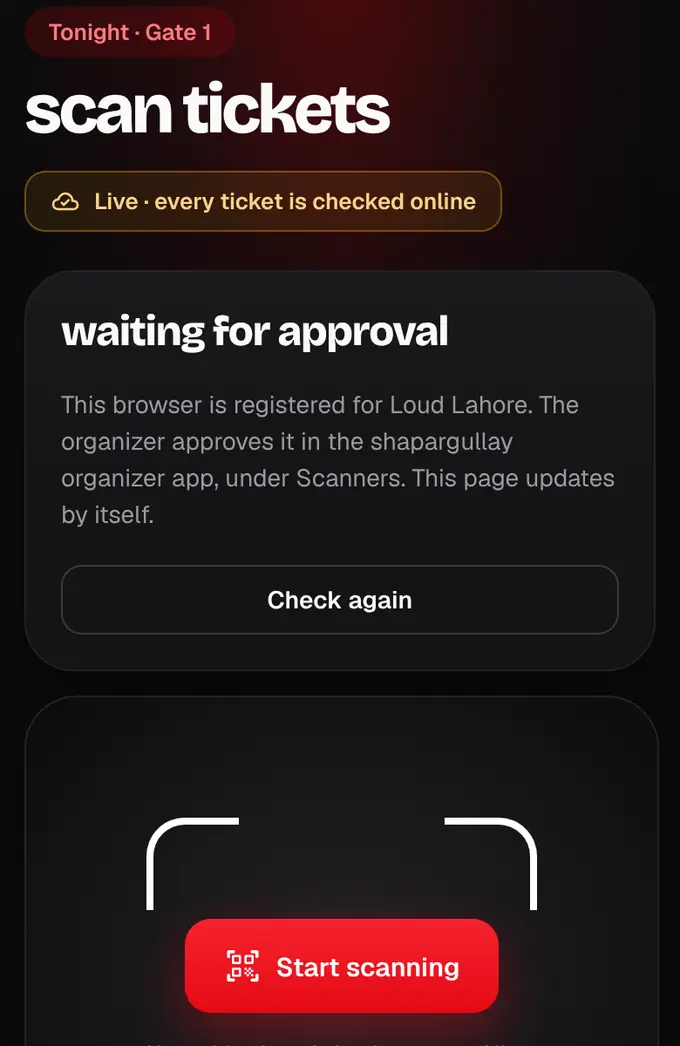
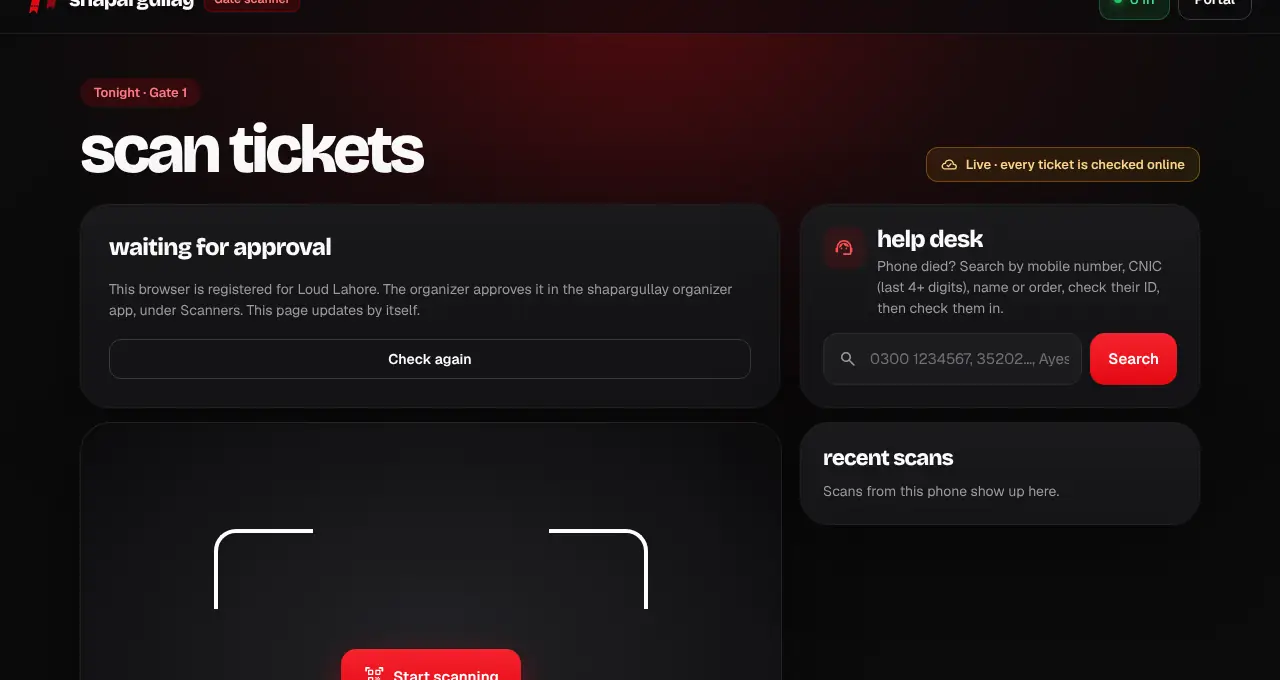
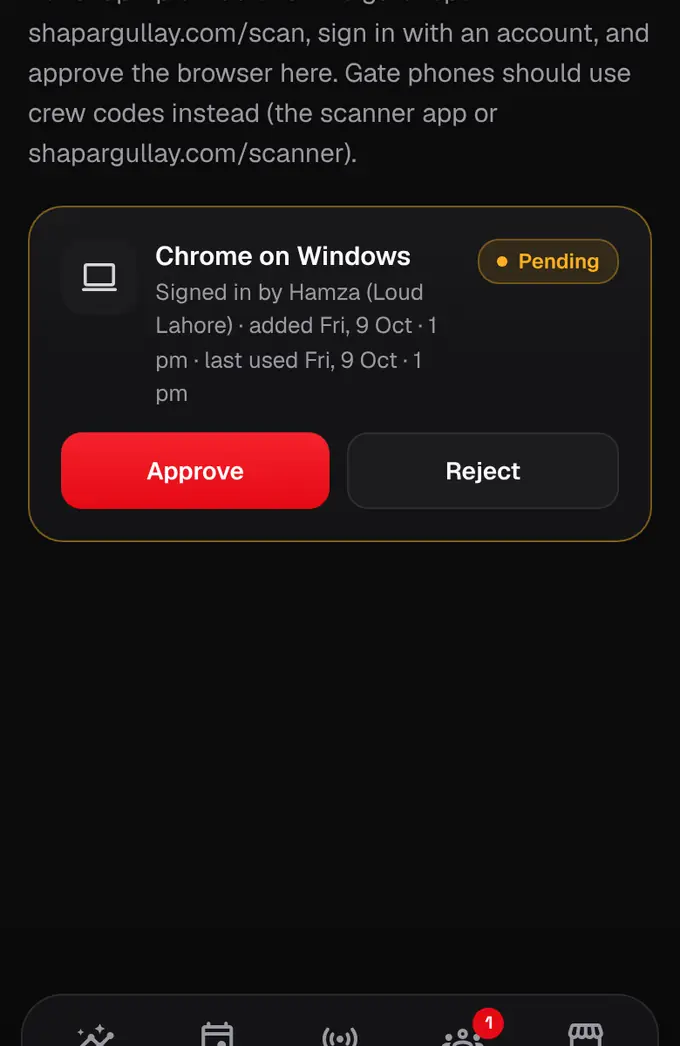
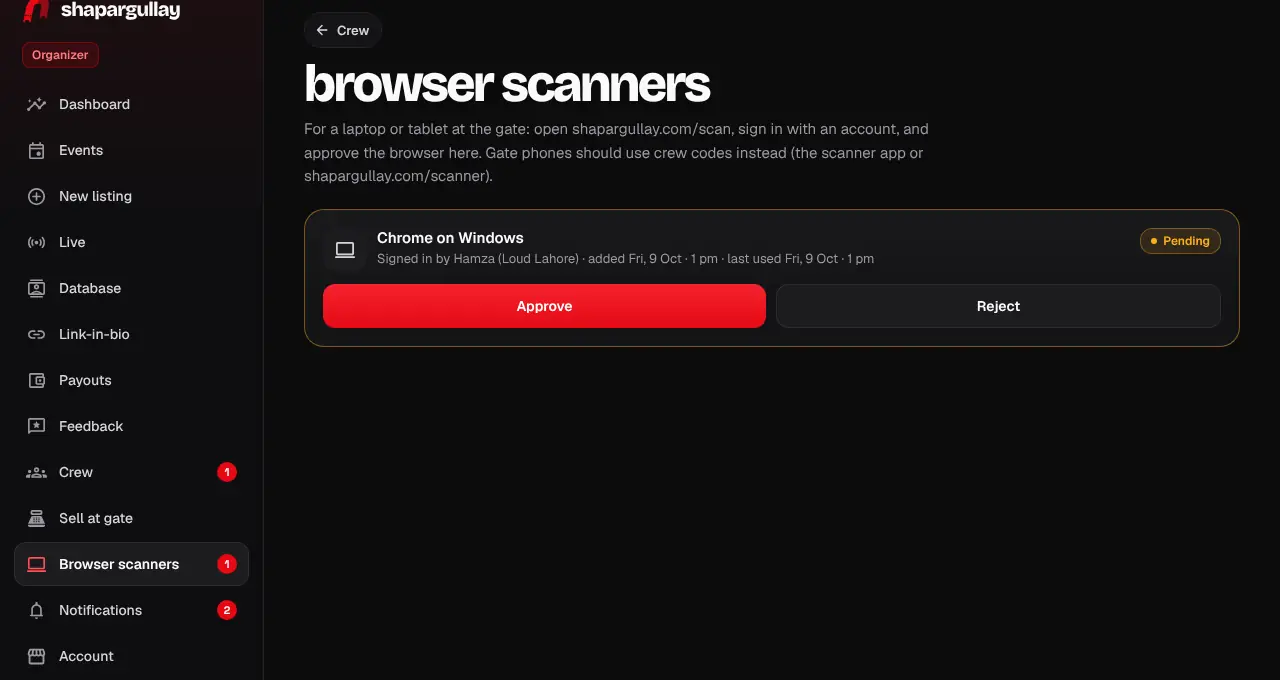
The first time, it says waiting for approval. Approve it at shapargullay.com/organizer/devices (Browser scanners), or in the Organizer app’s Crew tab under “Approve browsers here”. The page updates by itself.
- 3
On Browser scanners, check the browser and who opened it, then tap Approve.
- 4
Pick the event under Scanning for and type your gate name. Tap Start scanning and allow the camera.
- 5
Point the camera at each QR. Green means let them in; red says why not, like already scanned, wrong date or another event.
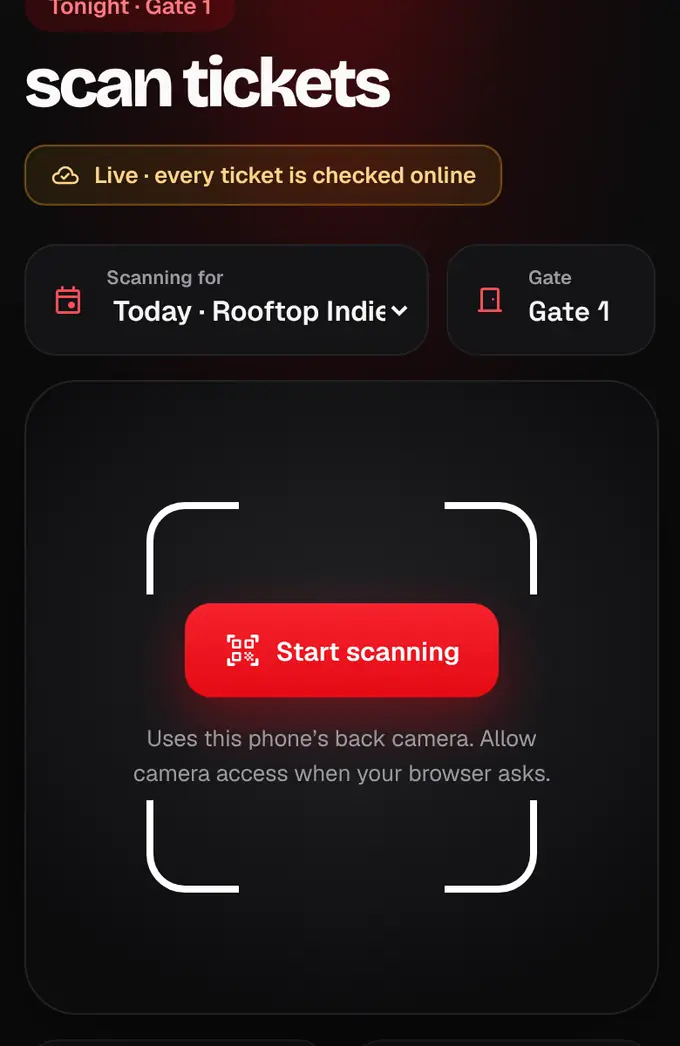
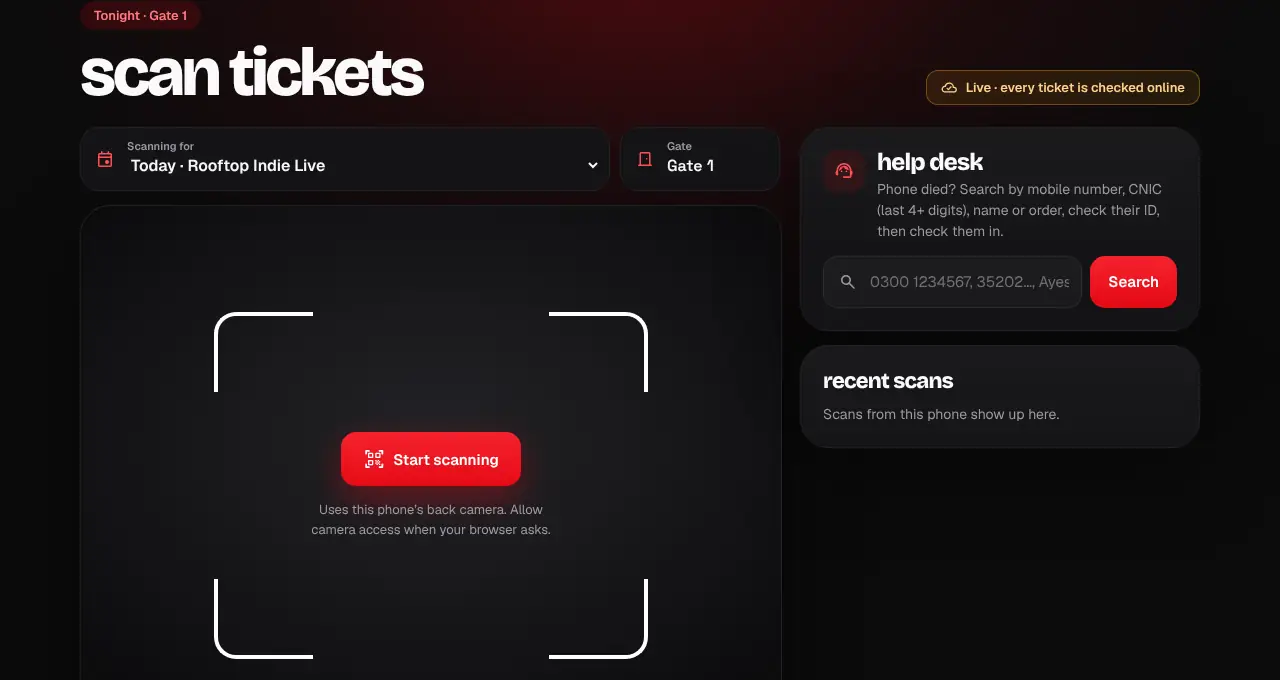
- Every ticket is checked online. If the connection drops, the page checks tickets against the offline pack it downloaded for that event (shown in amber) and syncs when it’s back.
- Gate phones are easier with the Scanner app and a crew code.
Was this helpful?
related
qr_code_scannerSet up your gate crew with codesGive each scanner phone a one-time 6-digit code. No account needed.qr_code_scannerCheck guests in by hand at the help deskFind a ticket by name, phone or order number and check the guest in without a QR.qr_code_scannerKeep scanning when the internet dropsScanner phones keep an offline pack of your tickets. With no signal they check tickets against it, and send everything when the connection is back.
Still stuck?
didn’t find what you need?
smart_toyAsk ShappyOur assistant answers straight away, with live dates, prices and your orders.chatOpen the chat
support_agentContact supportTalk to a person. We reply within one working day. WhatsApp takes messages (not calls), and each chat gets a support reference.