send tickets to a friend
Pick which tickets to send and enter your friend’s email, or in the app scan, tap or share a link. It’s free.
- 1
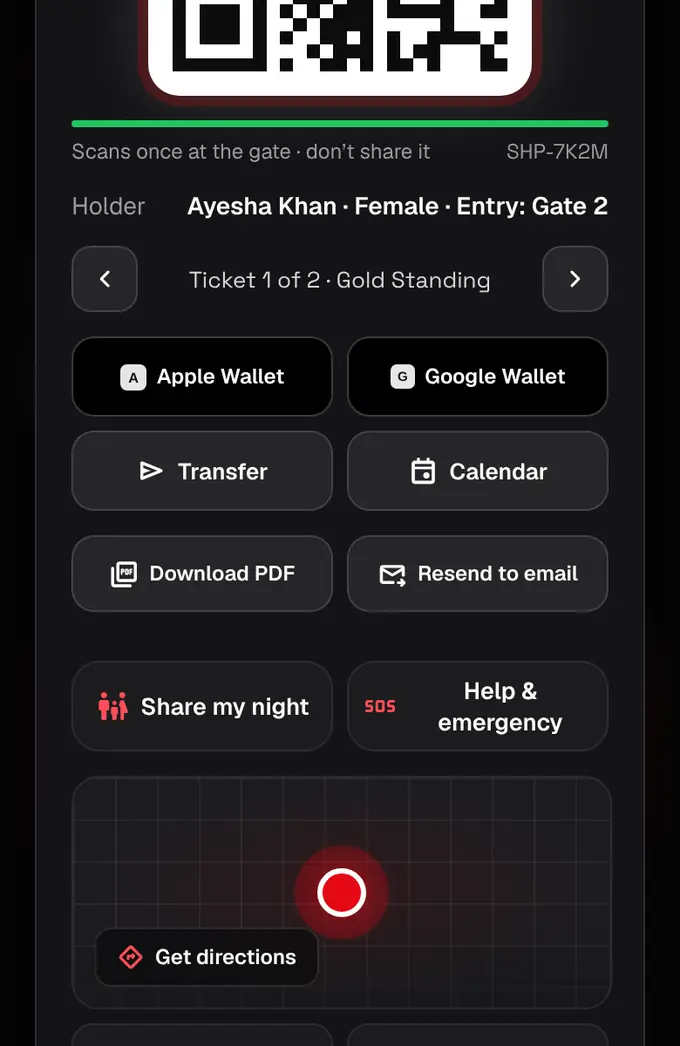
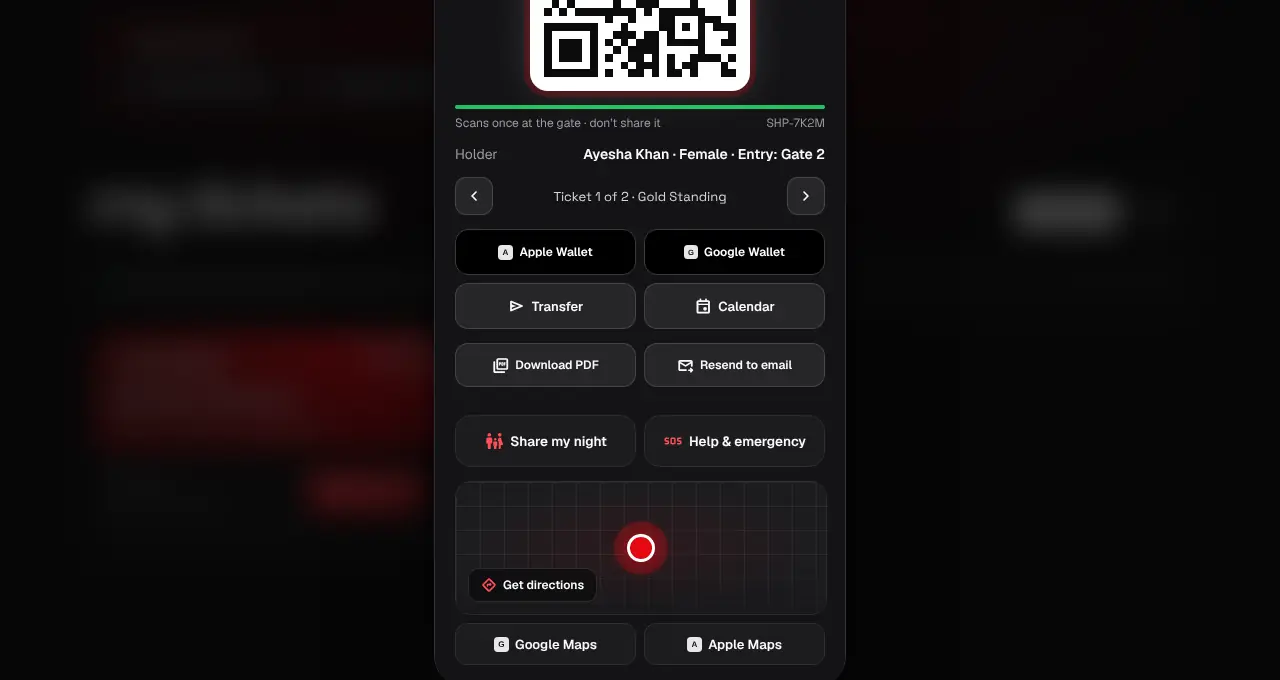
Open My tickets, tap Show QR on the order, then tap Transfer.
- 2
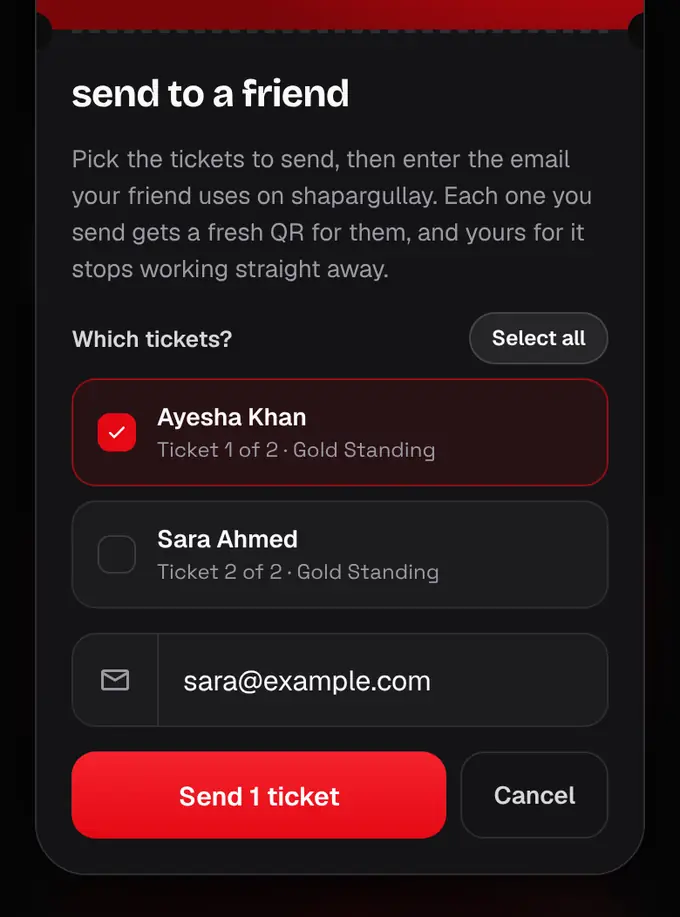
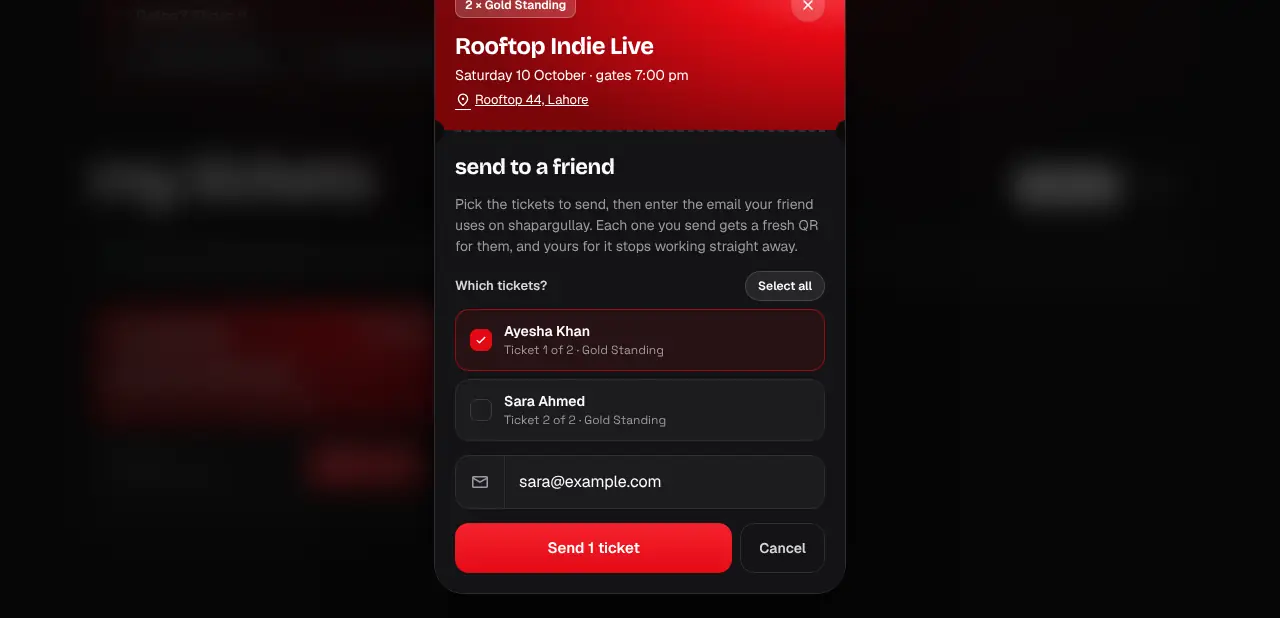
Tick the tickets you want to send (Select all picks every one). Enter the email your friend uses for their shapargullay account.
- 3
Tap Send, check the list on the confirm screen, and tap Yes, send it.
- 4
Your friend gets the tickets in their account with fresh QR codes, and both of you get a notification. Your QR for those tickets stops working straight away. The tickets you didn’t pick stay with you.
- 5
No account with that email yet? Nothing moves: we email them an invite and the tickets stay with you, QR unchanged, until they sign up with that email. Then the tickets move to them by themselves. Until then the ticket shows “Invite sent to …” with Cancel invite.
- 6
In the shapargullay app, with your friend next to you, you can skip the email: they open Tickets → Receive, and you tap Scan their phone, Tap phones together (iPhone to iPhone, or any phone to an Android phone over NFC), or Share a link (AirDrop, Quick Share or any app; you confirm before anything moves).
- Official partner tickets can’t be transferred: the partner’s PDF is the ticket.
- A ticket that has already been scanned, or used to join an online event, can’t be sent.
- Transfers can’t be undone, so check the email first.
- Your friend needs a shapargullay account; they can create one for free.
- A ticket with an invite waiting can’t be sent any other way. Cancel the invite first. You can still use the ticket yourself: that cancels the invite.
- Invites end when the event ends.