watch your gates live on event night
The Live section shows who’s inside, how fast each gate is moving, your crew, failed scans and alerts, refreshed every 10 seconds.
- 1
Open Live at shapargullay.com/organizer/live (in the organizer app: the Live tab). On the event day it opens your event by itself; pick another event or date from the Event list.
- 2
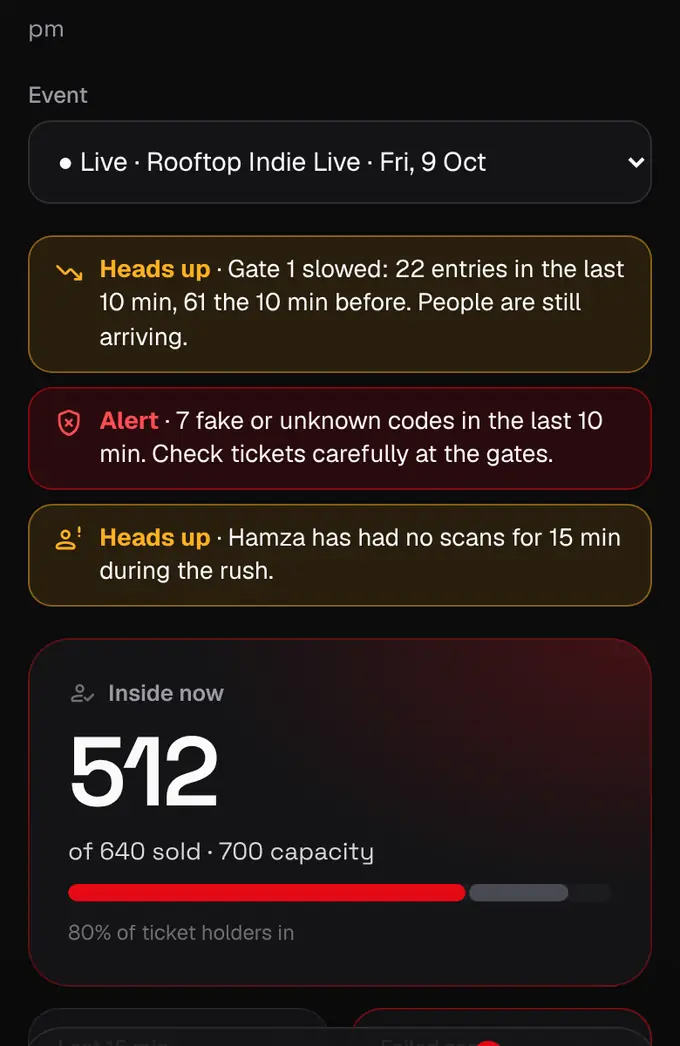
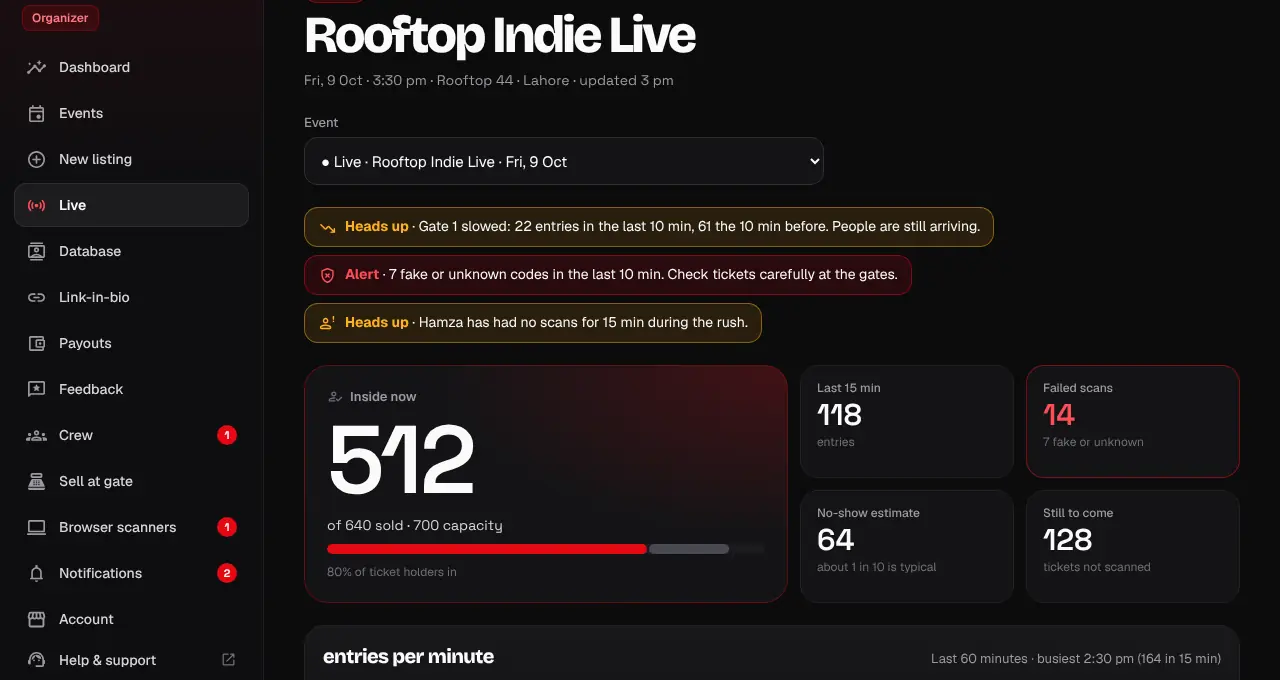
The big number is how many people are inside, out of tickets sold and your capacity. Next to it: entries in the last 15 minutes, failed scans, the no-show estimate and how many tickets haven’t been scanned yet.
- 3
The line chart shows entries per minute for the last hour. Point at it (or touch it) to see the exact count for a minute.
- 4
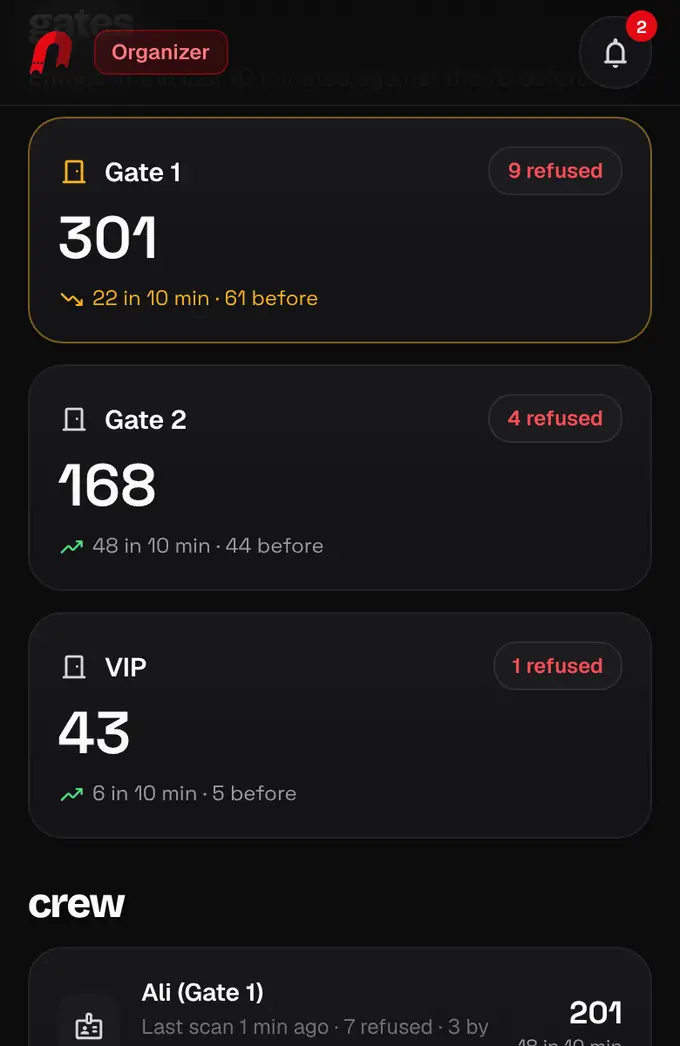
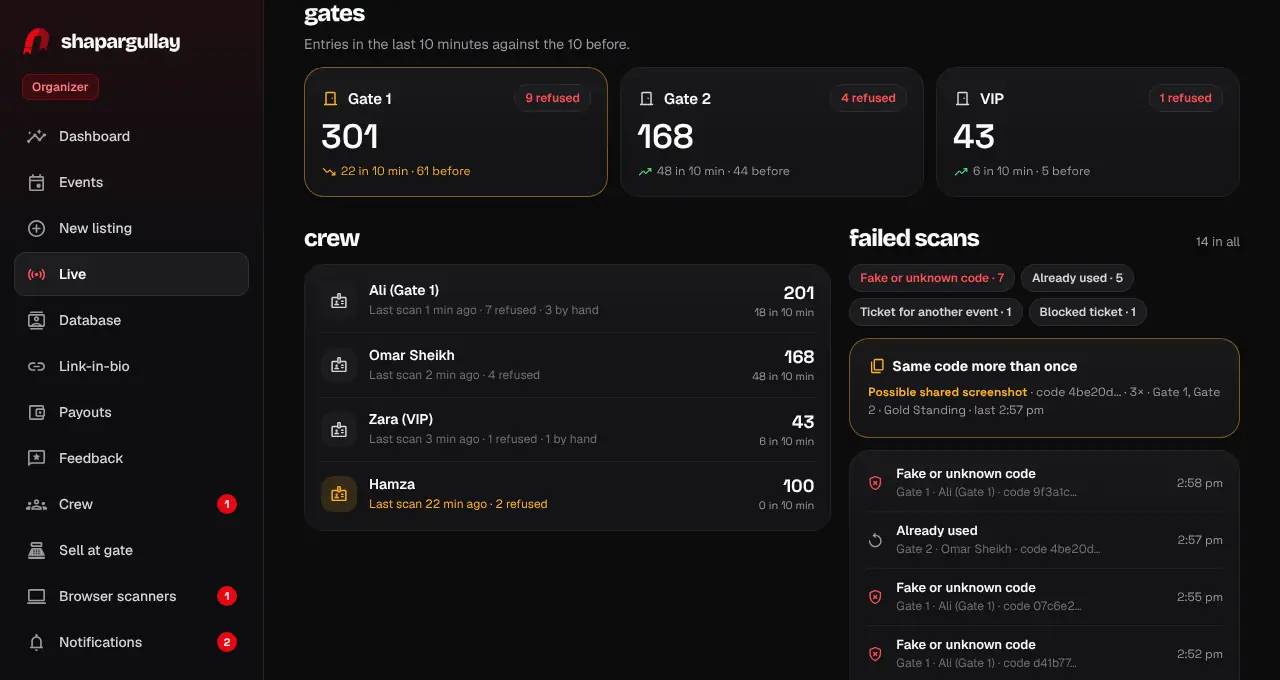
Gates show how many came in at each gate, with the last 10 minutes against the 10 before. Crew shows each scanner’s count and when they last scanned.
- 5
Failed scans lists every refused code with its gate, crew member and reason. “Possible shared screenshot” means a code that was already used came back again, often a photo of someone else’s ticket.
- 6
Watch the alert chips at the top: a gate slowing down while people are still arriving, a spike in fake codes, or a crew member with no scans for 15 minutes during the rush.
- 7
If a scanner phone lost signal, a line says how many scans are waiting to sync on how many phones. Offline check-ins count once they sync, at the time they were scanned, and a ticket let in offline that was already used elsewhere shows up as a possible shared screenshot.
- The page refreshes every 10 seconds on the event day. On other days it shows the summary of your last event.
- Codes are shown only as the first characters of a one-way fingerprint, never the ticket itself.
- Our team can see the same page for any event from /admin/live.