choose your notifications
Pick which updates reach you by push in the app and by email.
- 1
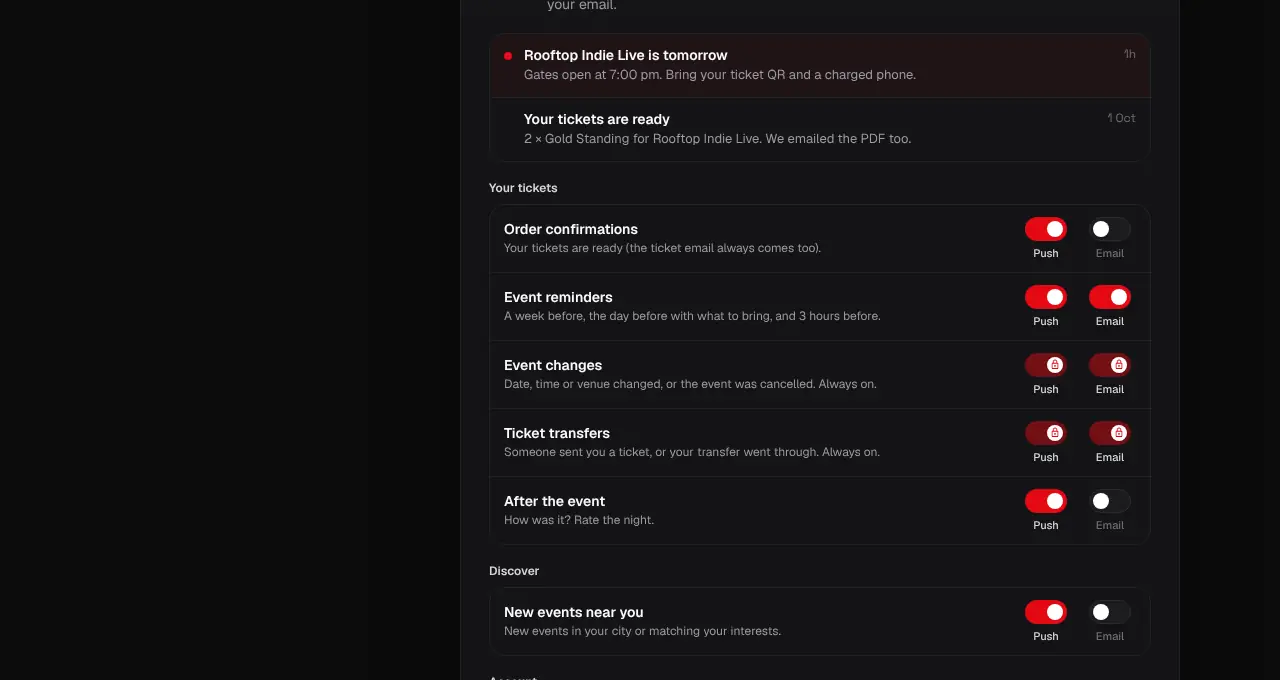
Go to your Account page and scroll to notifications. Your latest notifications are listed first.
- 2
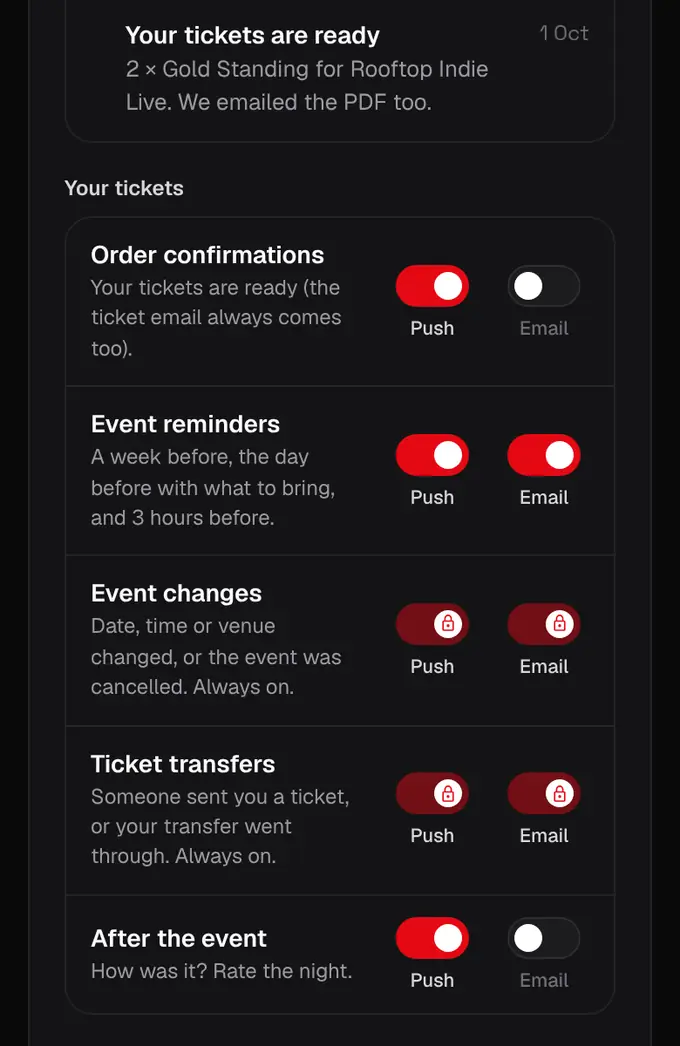
Below them, each kind of update has a Push and an Email switch. Tap to turn one on or off.
- 3
From an email: tap “Unsubscribe from … emails” at the bottom, then Unsubscribe. No login needed. The page that opens has Undo, an option to stop all optional emails, and a link back to these settings.
- Every email except tickets and sign-in codes has the unsubscribe link. Essential ones (account, money, changes to your events) say why they always come and link here instead.
- We keep it light: optional emails only between 10 am and 9 pm, at most one a day and three a week; event reminders at most two a day, plus the one a few hours before. Anything over that waits in your inbox here.
- Event reminders come a week before, the day before (with what to bring) and 3 hours before.
- Switches with a lock, like event changes and transfers, always stay on so you never miss something important.
- In the app, Profile → Notifications opens the same inbox and settings.
- Deal alerts have one extra switch that turns all of them off at once, and a list of the events you asked about.
Was this helpful?
related
personChange your name, phone, email or passwordEverything about your account is on the Account page.confirmation_numberAdd an event to your calendarOne tap puts the event in your calendar so you don’t miss it.confirmation_numberGet told about deals on an eventTap “Tell me about deals” and we let you know when that event gets a last-minute deal, a lower price, a public code or an early bird about to end.
Still stuck?
didn’t find what you need?
smart_toyAsk ShappyOur assistant answers straight away, with live dates, prices and your orders.chatOpen the chat
support_agentContact supportTalk to a person. We reply within one working day. WhatsApp takes messages (not calls), and each chat gets a support reference.