list an in-person event
The listing editor goes one step at a time: fill in each screen, tap Next, check the live preview, then review and submit.
- 1
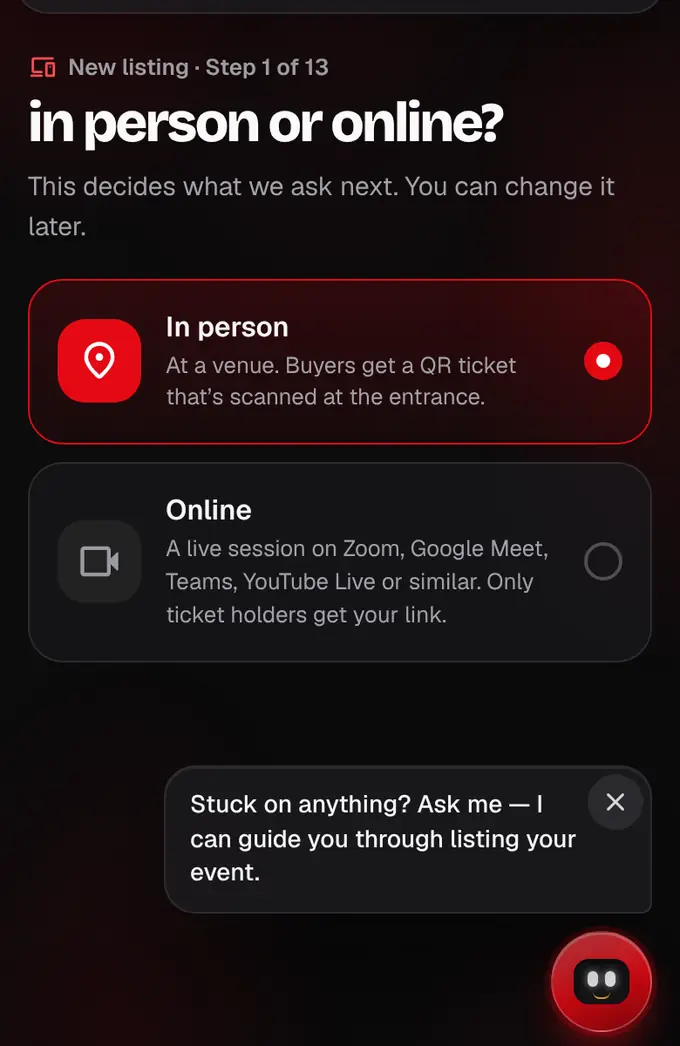
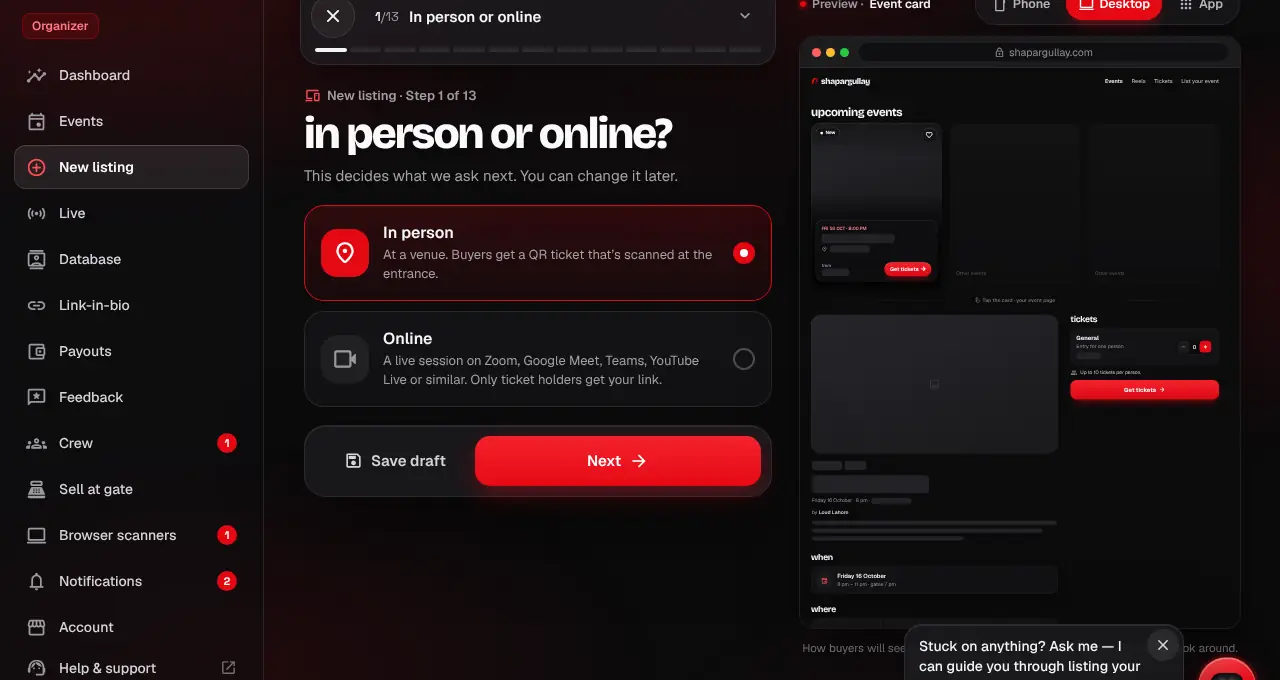
Open shapargullay.com/organizer/listing (shapargullay.com/list-event opens the same editor). It goes one screen at a time: the bar at the top shows the step you’re on, tap it to see all steps, and Back / Save draft / Next sit at the bottom. Step 1: choose In person.
- 2
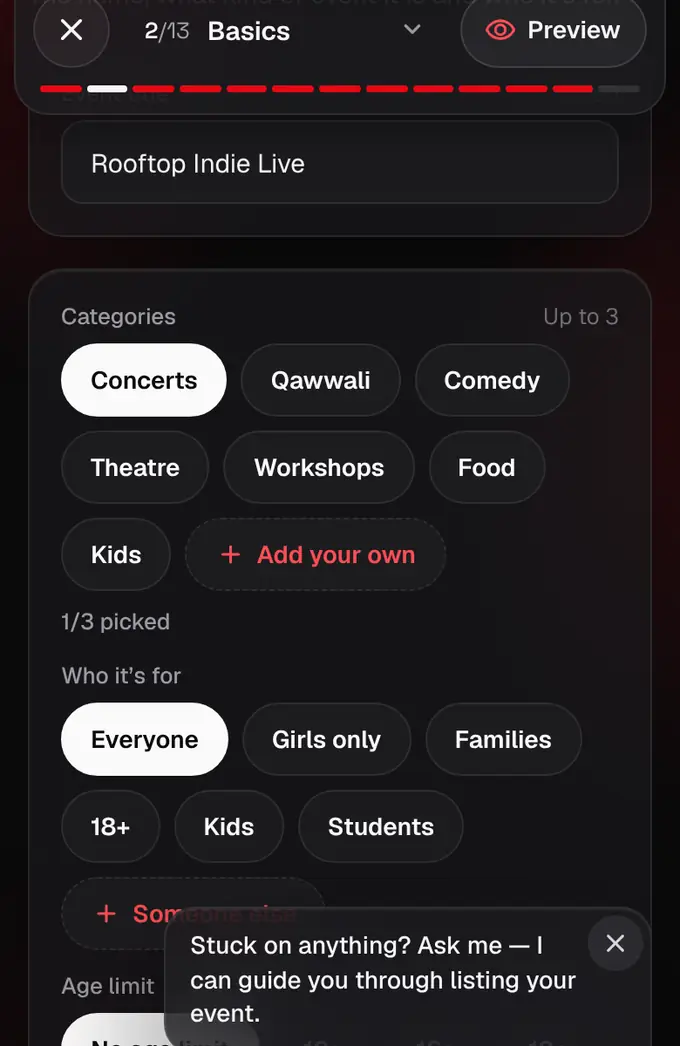
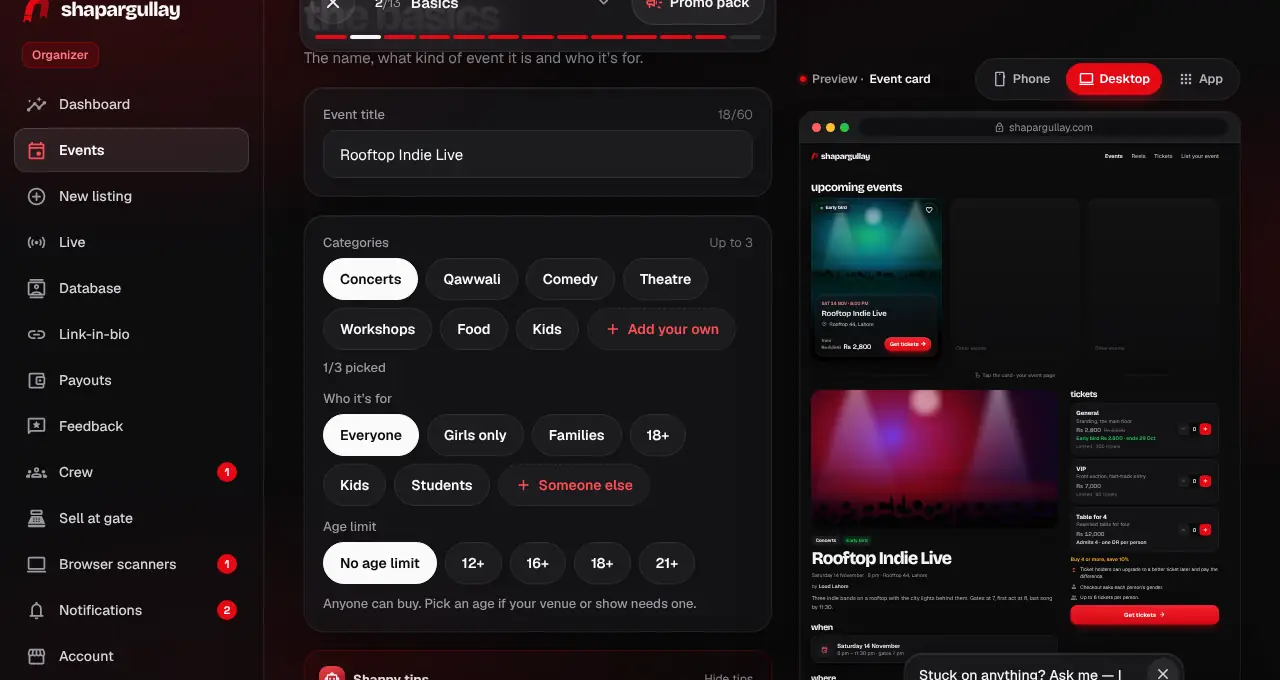
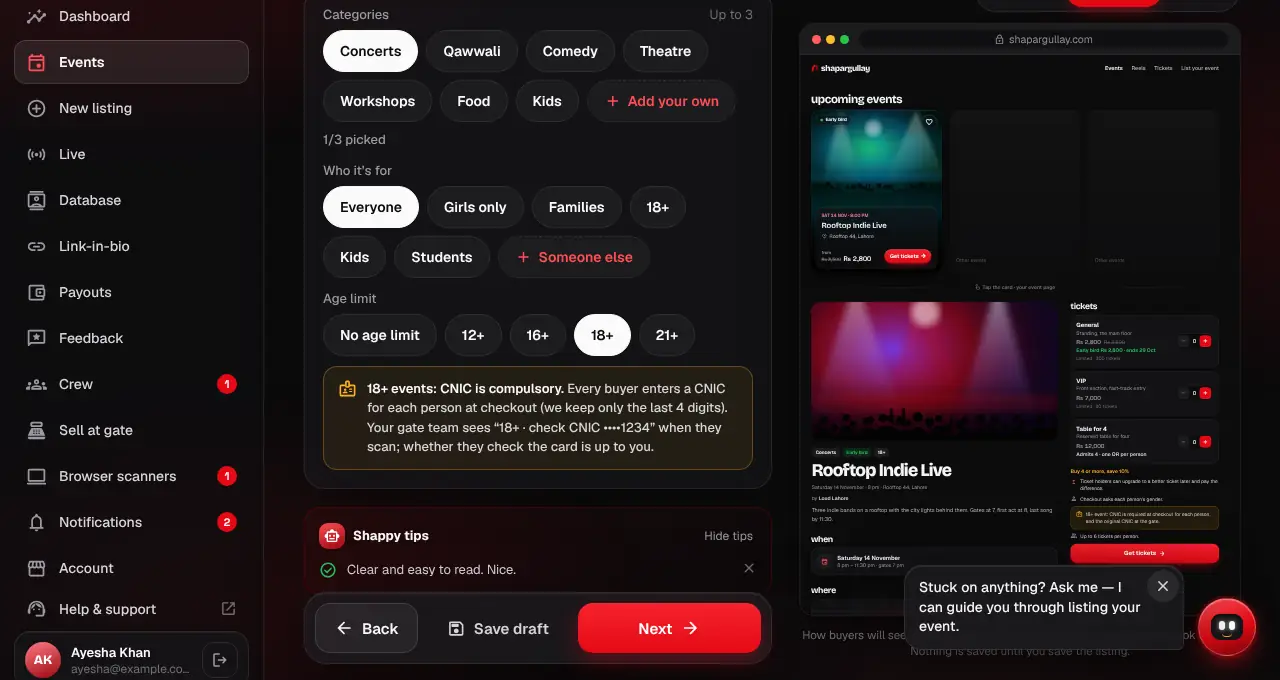
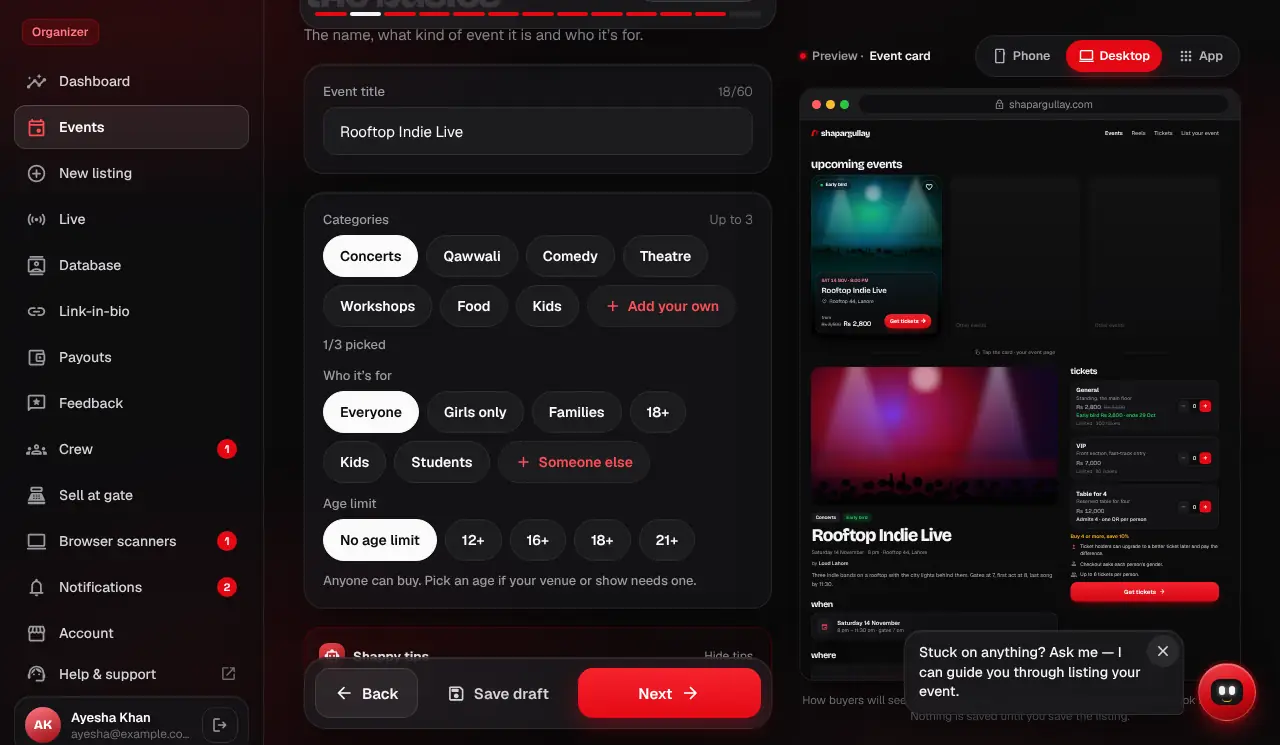
Basics: the name, up to three categories and who it’s for. Don’t see your kind of event? Tap “Add your own” and type it. The next step is the description.
- 3
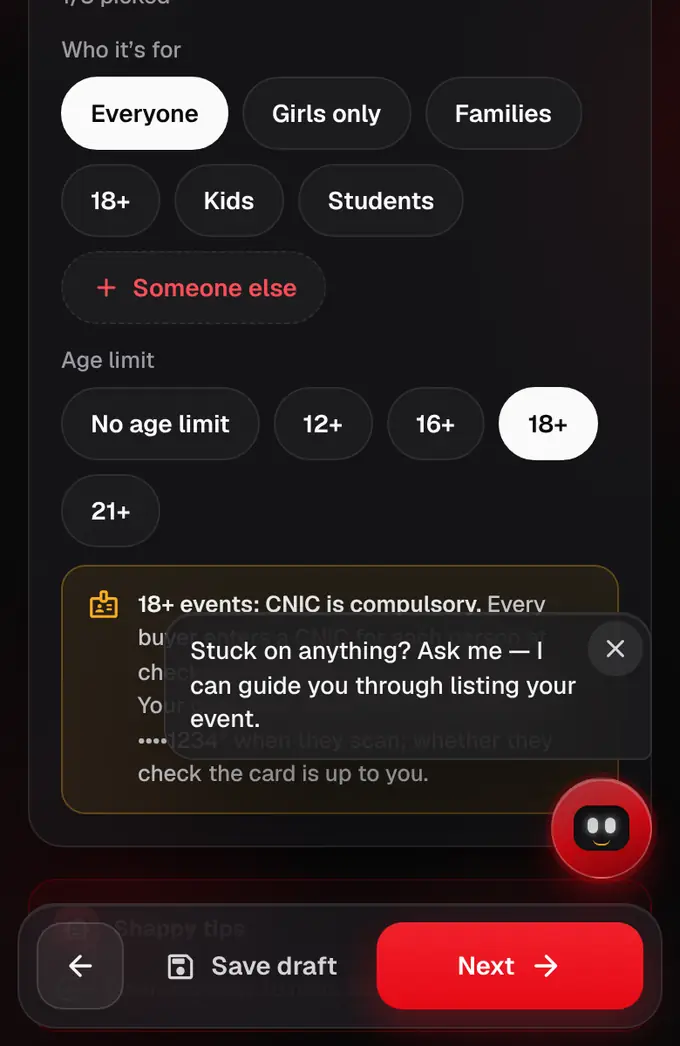
Still in Basics, pick an age limit: no limit, 12+, 16+, 18+ or 21+. At 18+ every guest must give their CNIC at checkout (we keep only the last 4 digits).
- 4
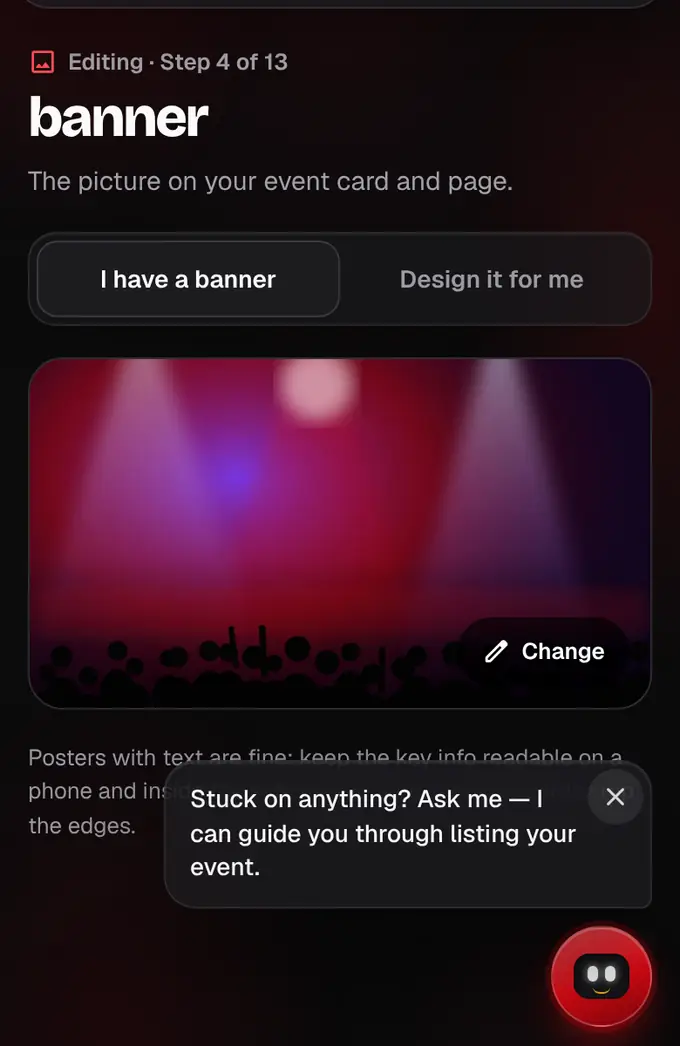
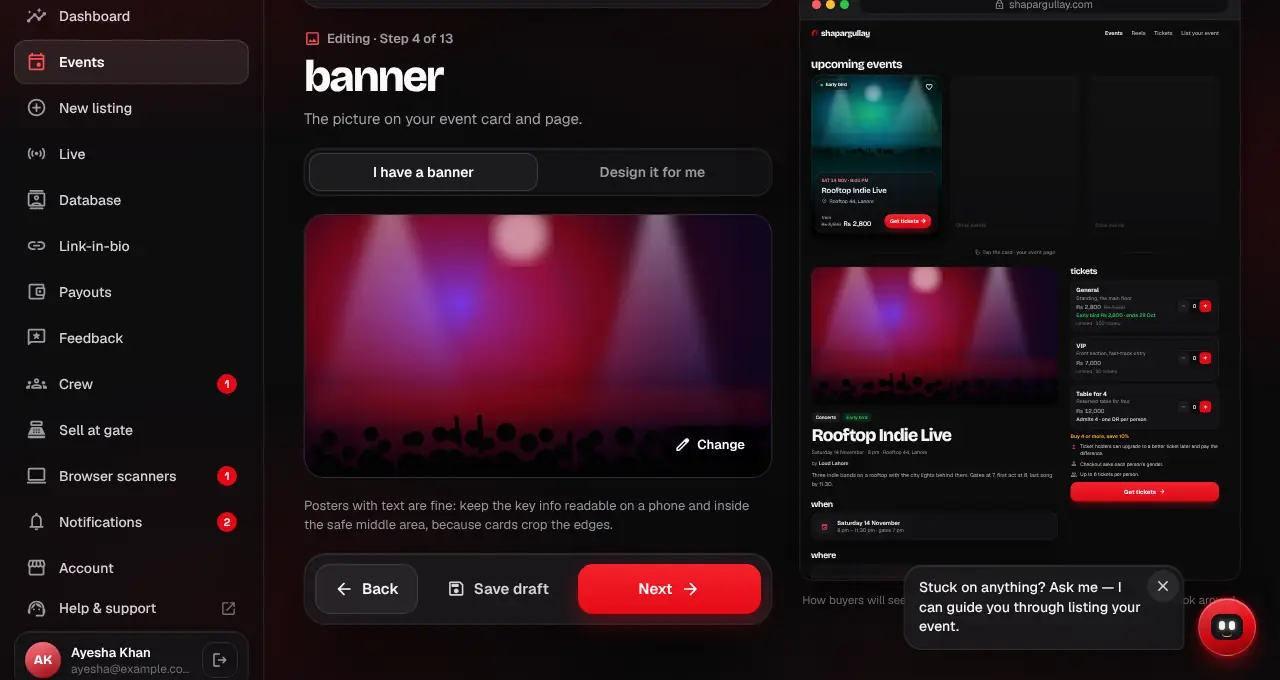
Banner: tap the box to pick your poster or photo, or choose Design it for me. No banner yet? You can carry on and add it before you submit.
- 5
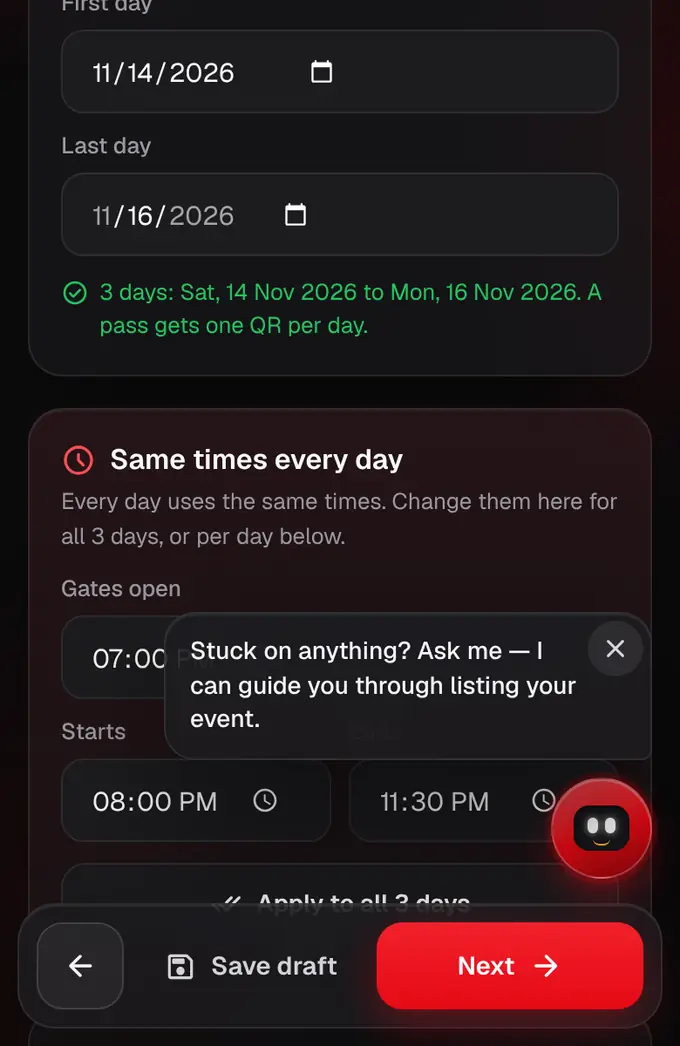
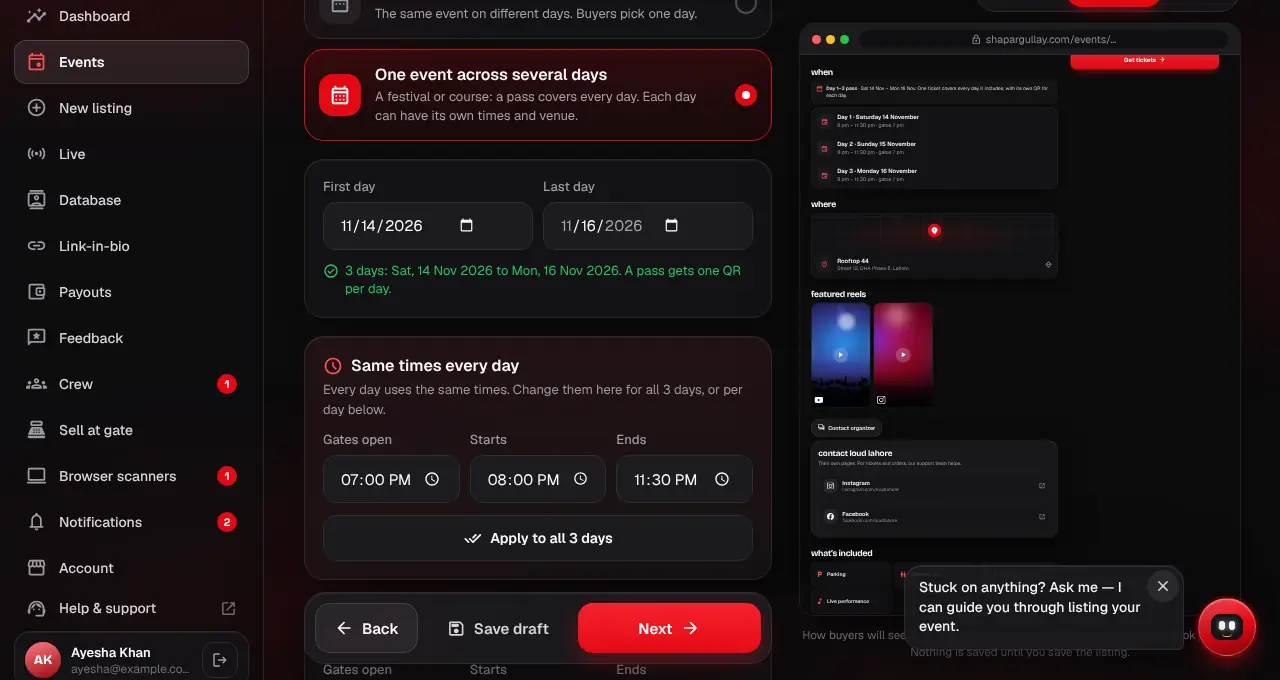
When: choose One day, Separate days (the same show on different days; buyers pick one) or One event across several days (pick the first and last day; a pass covers every day). Each day gets its own card with its own gates, start and end; “Same times every day” fills them all at once, and “Different venue this day” lets a day happen somewhere else. Times that don’t make sense, like gates opening after the start, are pointed out under the field.
- 6
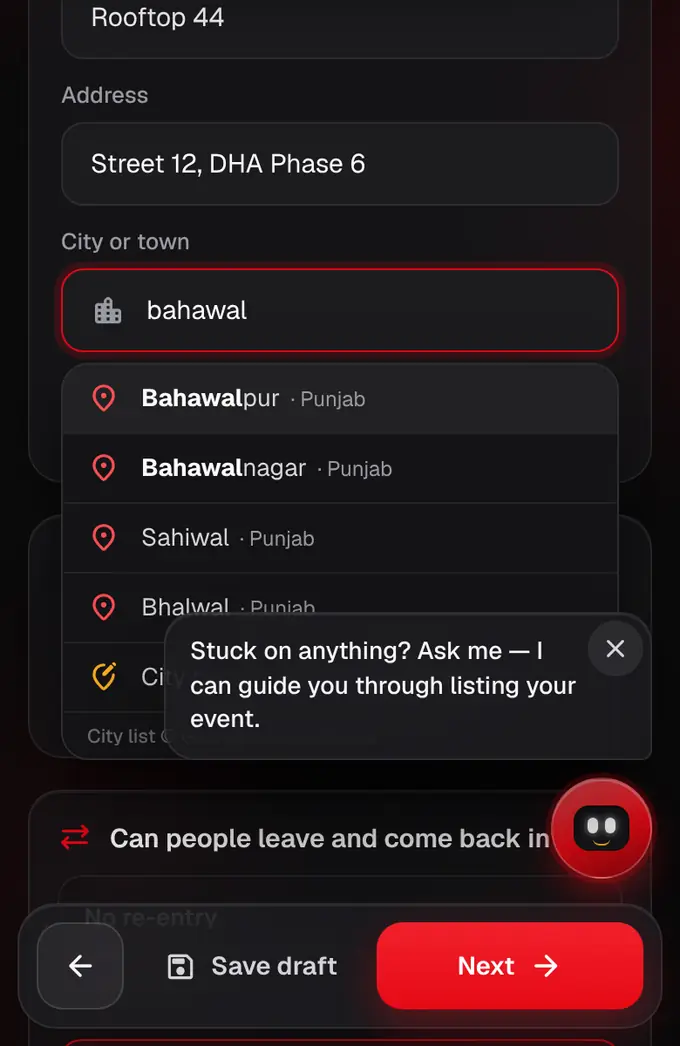
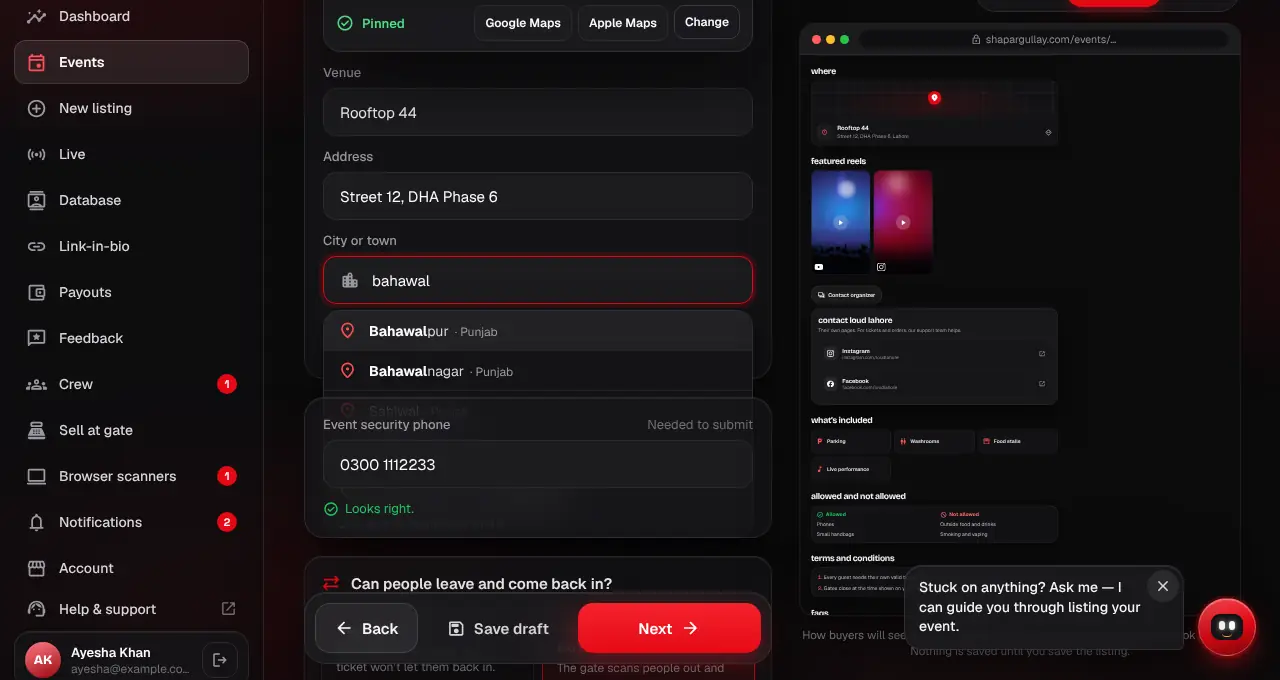
Where: start typing the venue’s name, street or area and pick it from the list (closest to your city first). If it isn’t there, tap “Not here? Search more widely” or use your location. Check the city: every city and town in Pakistan is listed, and “City not listed? Use …” keeps what you typed. Add your event security phone number (needed to submit, never shown publicly).
- 7
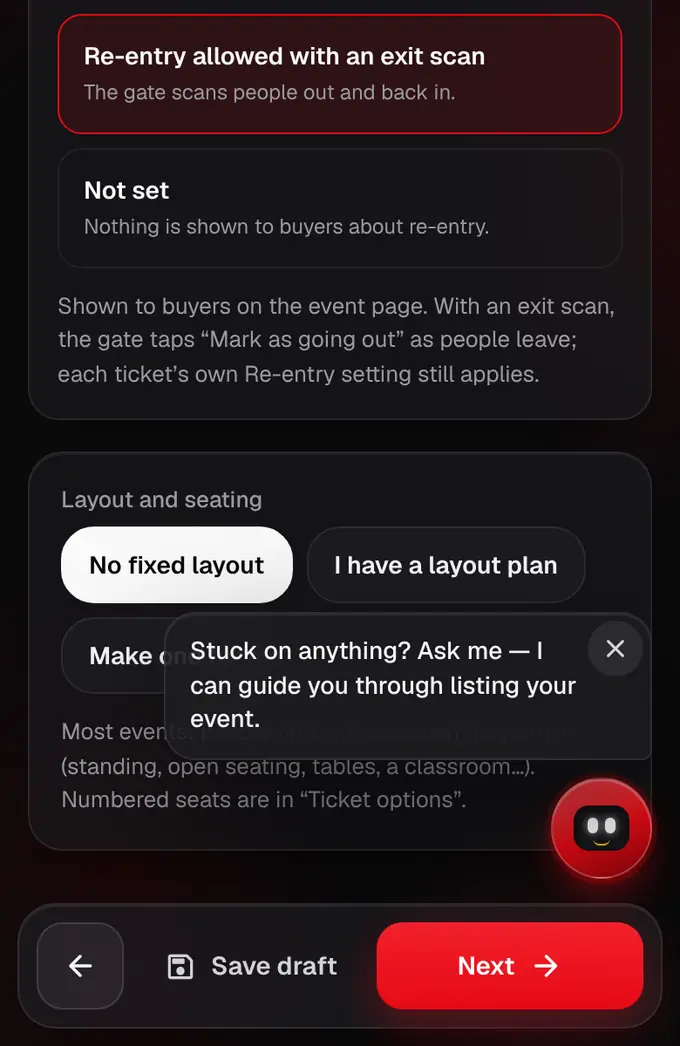
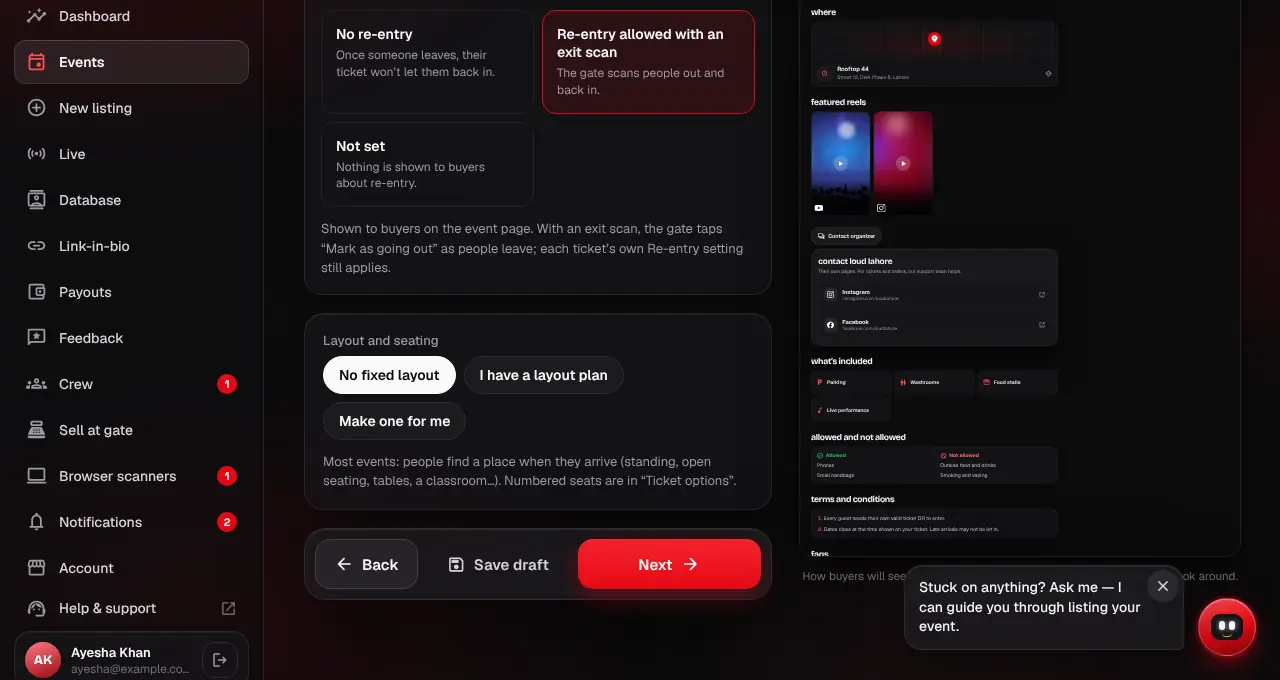
Under Layout and seating choose No fixed layout (most events: standing, open seating, tables), I have a layout plan (attach a photo or plan of the room) or Make one for me.
- 8
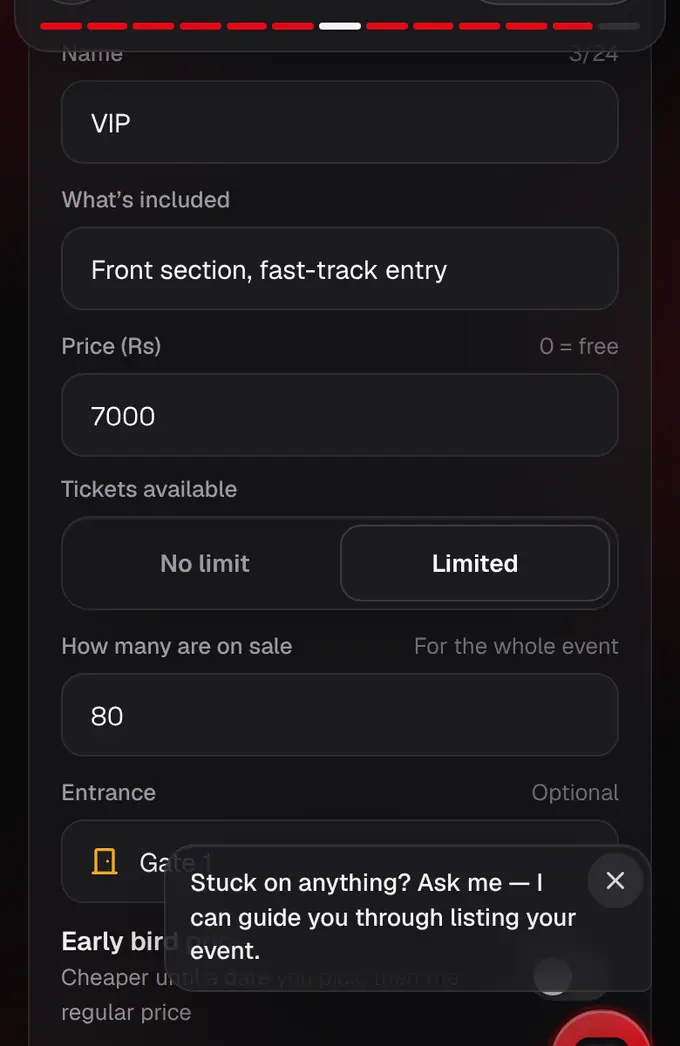
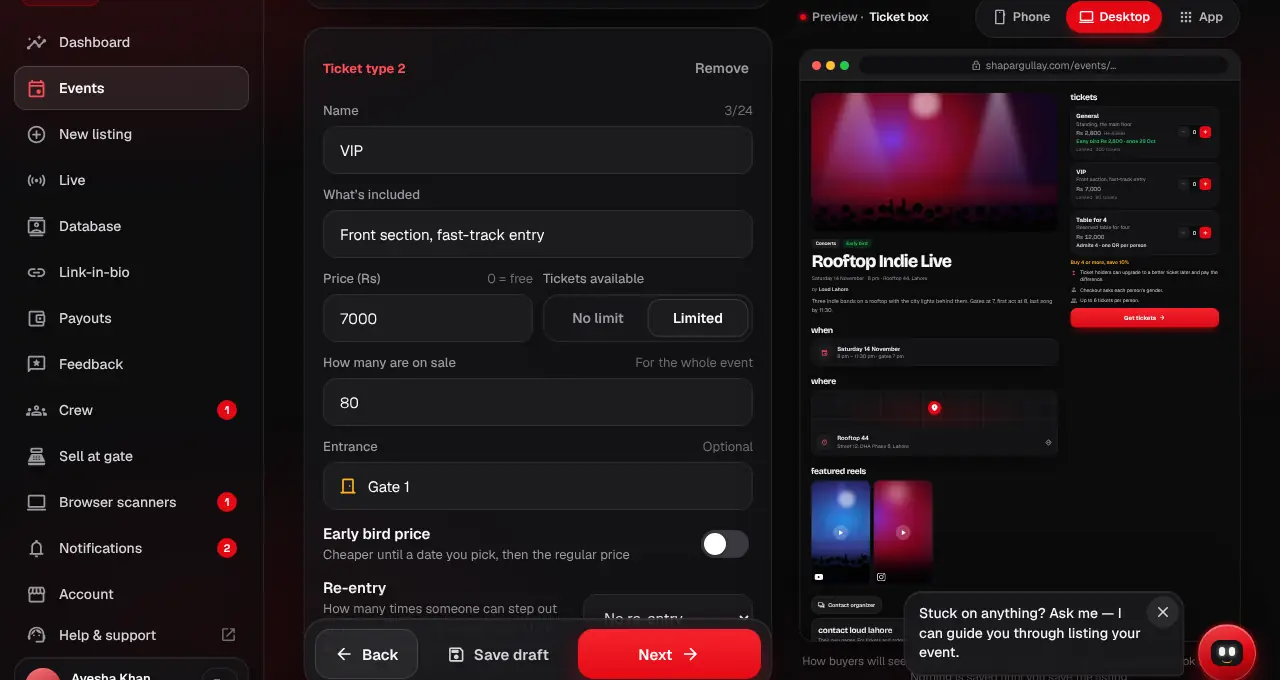
Tickets: give each ticket type a name and price, then choose No limit or Limited and how many are on sale.
- 9
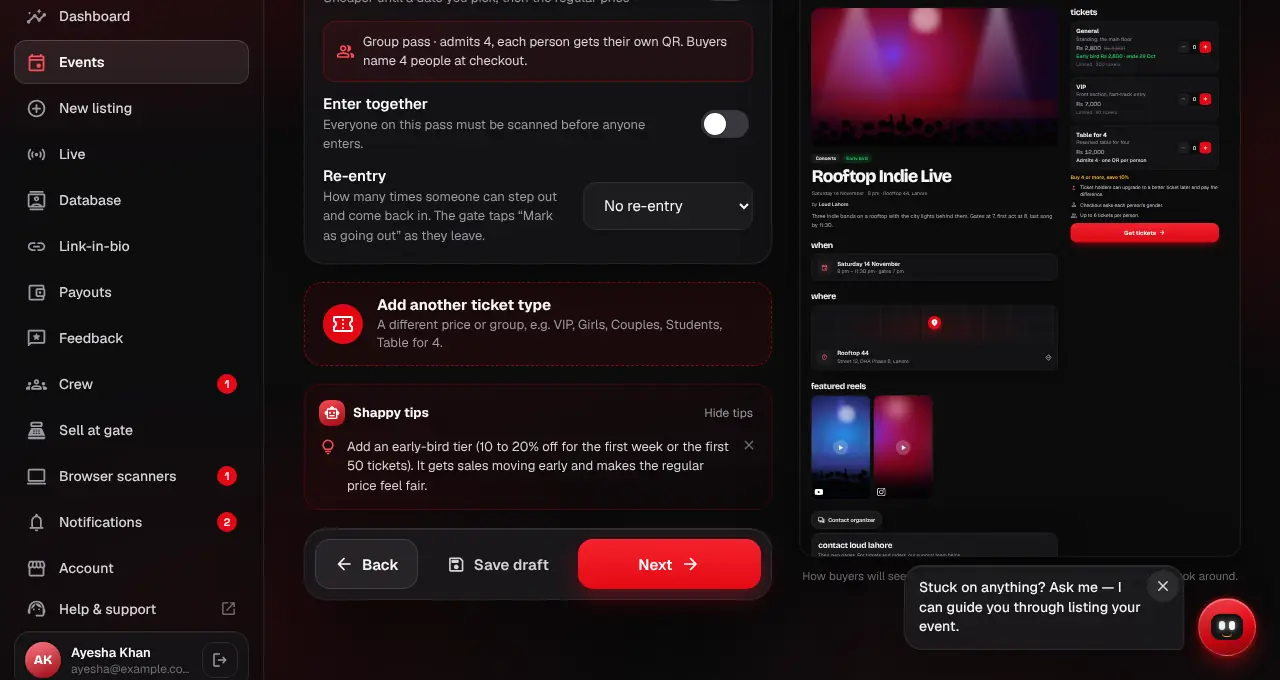
Tap “Add another ticket type” for a different price or group, like VIP, Girls, Couples or Table for 4.
- 10
Ticket options (all optional): a bundle discount, ticket upgrades, final-hours deals, whether to ask each guest’s gender, how many tickets one person can buy, when online sales close, selling at the gate (online sales kept open after the start), and numbered seats.
- 11
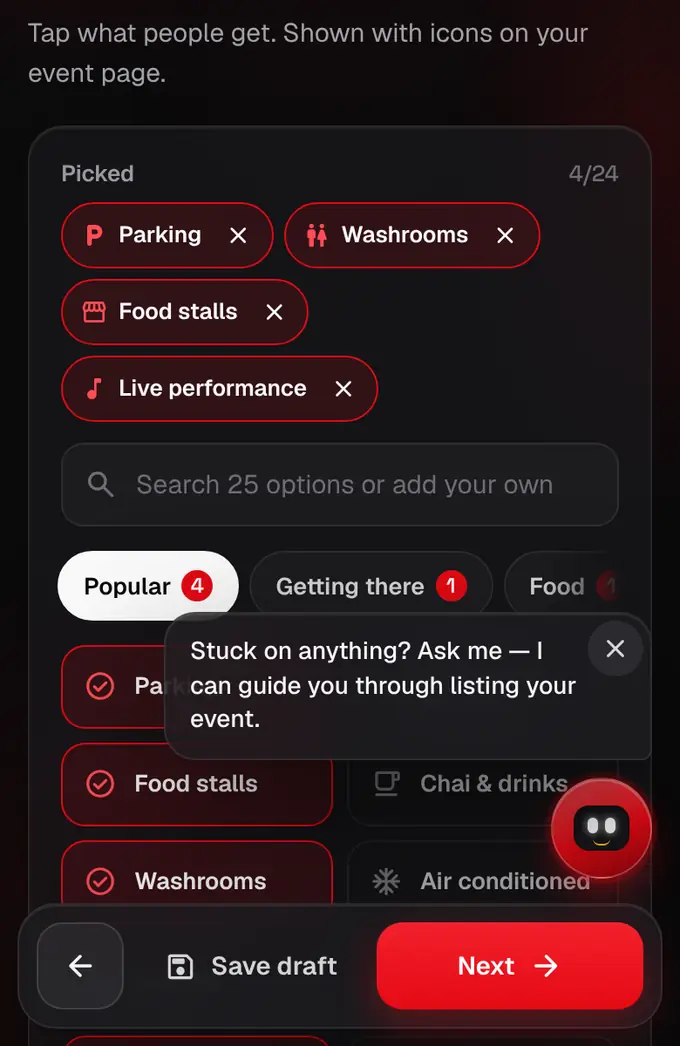
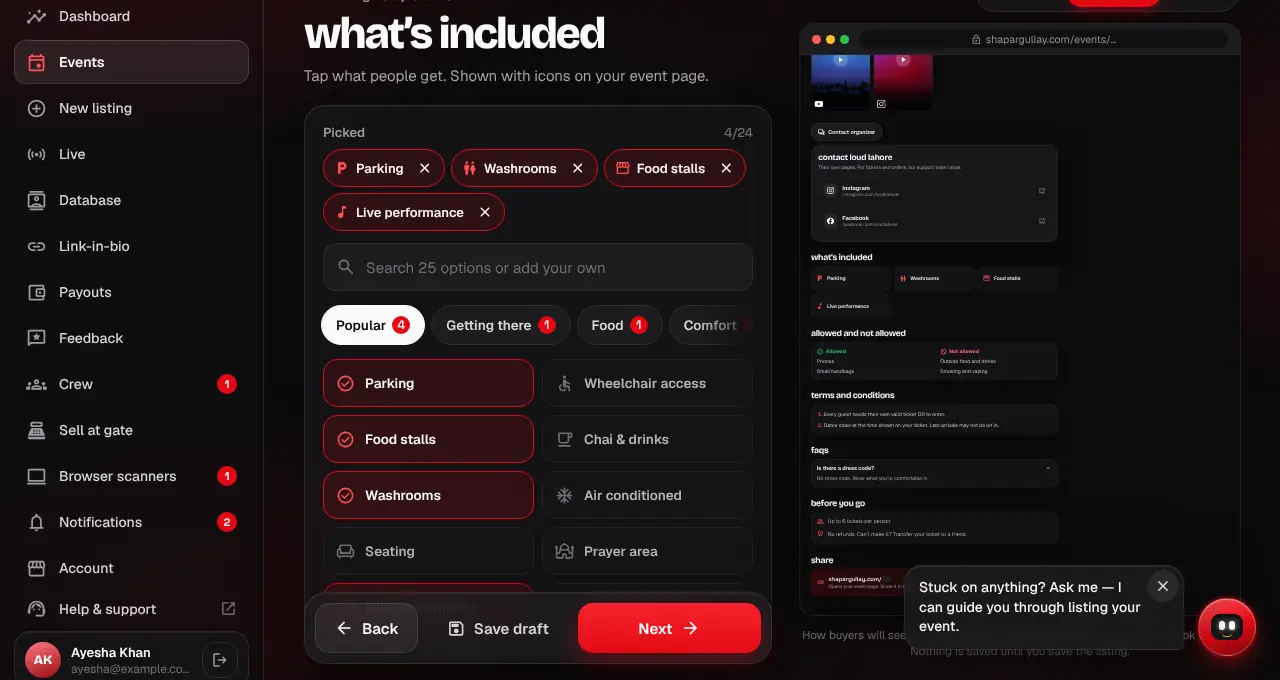
What’s included: tap what people get, like parking, washrooms or food stalls. Popular ones come first; the row of groups slides to the rest, and the search box finds an option or adds your own.
- 12
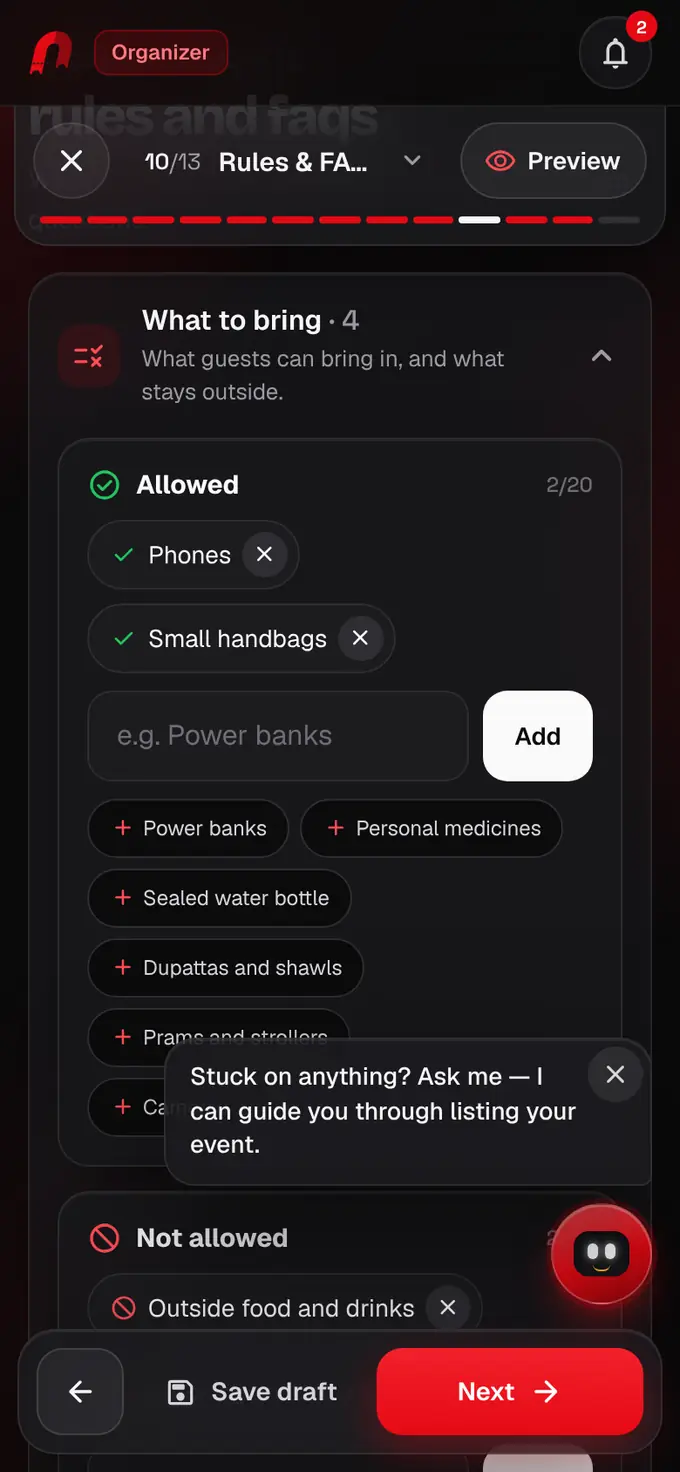
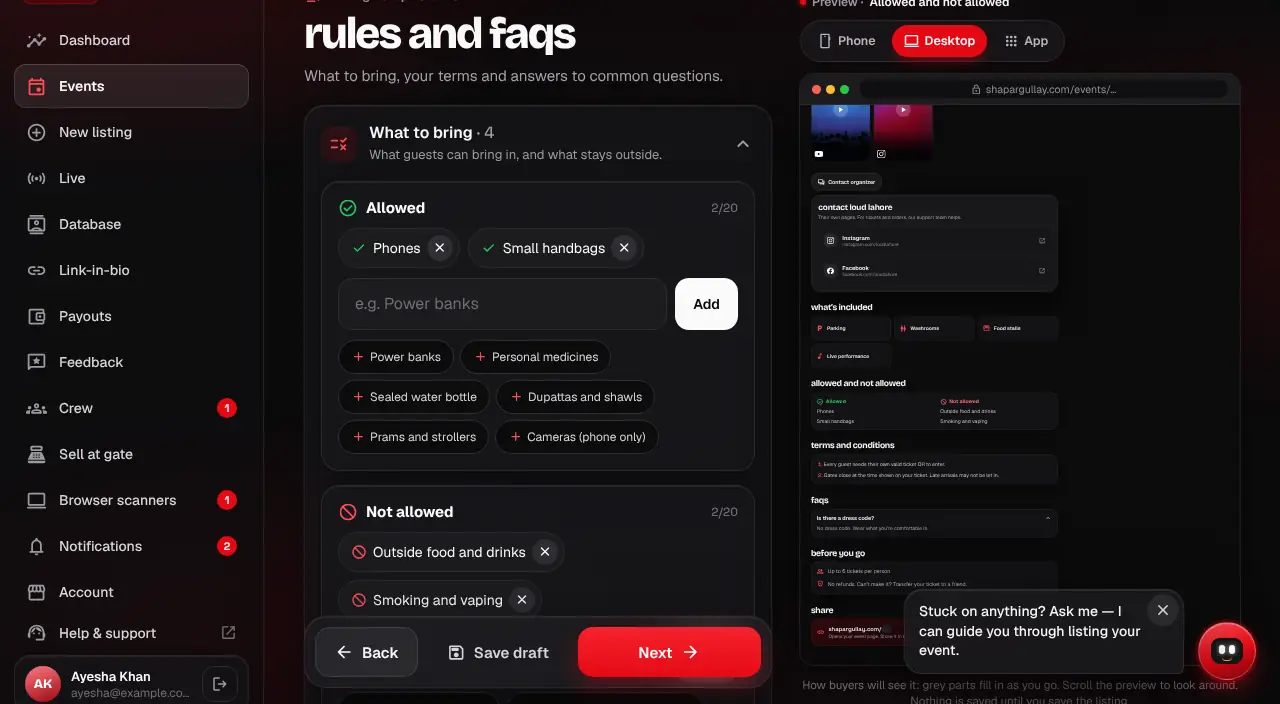
Rules & FAQs, first “What to bring”: tap the ready-made items or type your own, for what guests can bring in and what stays outside.
- 13
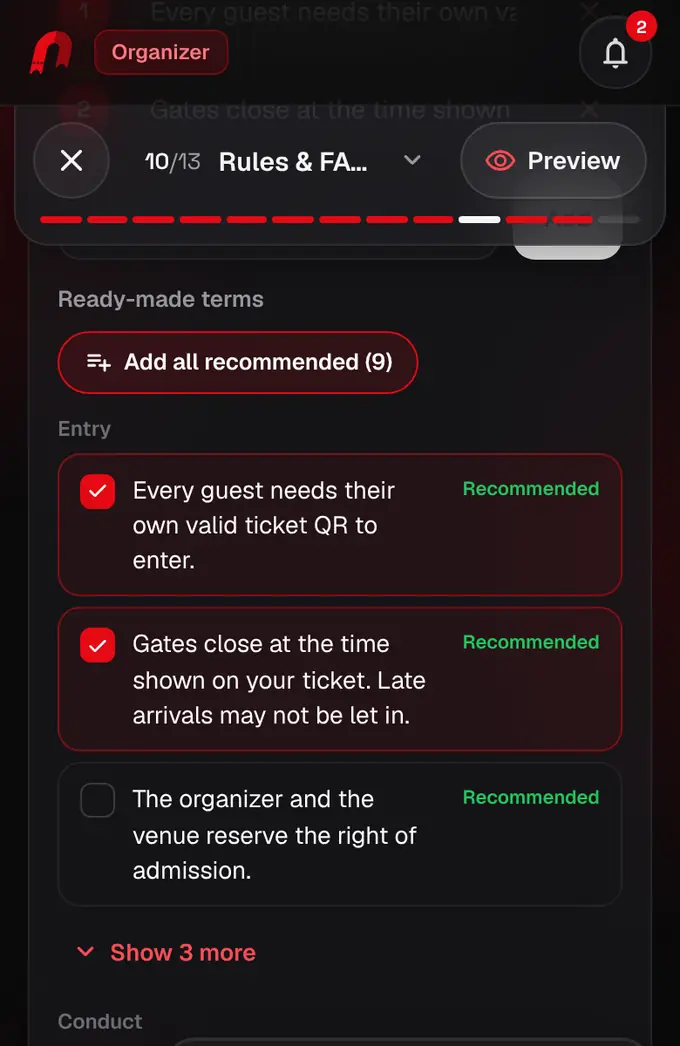
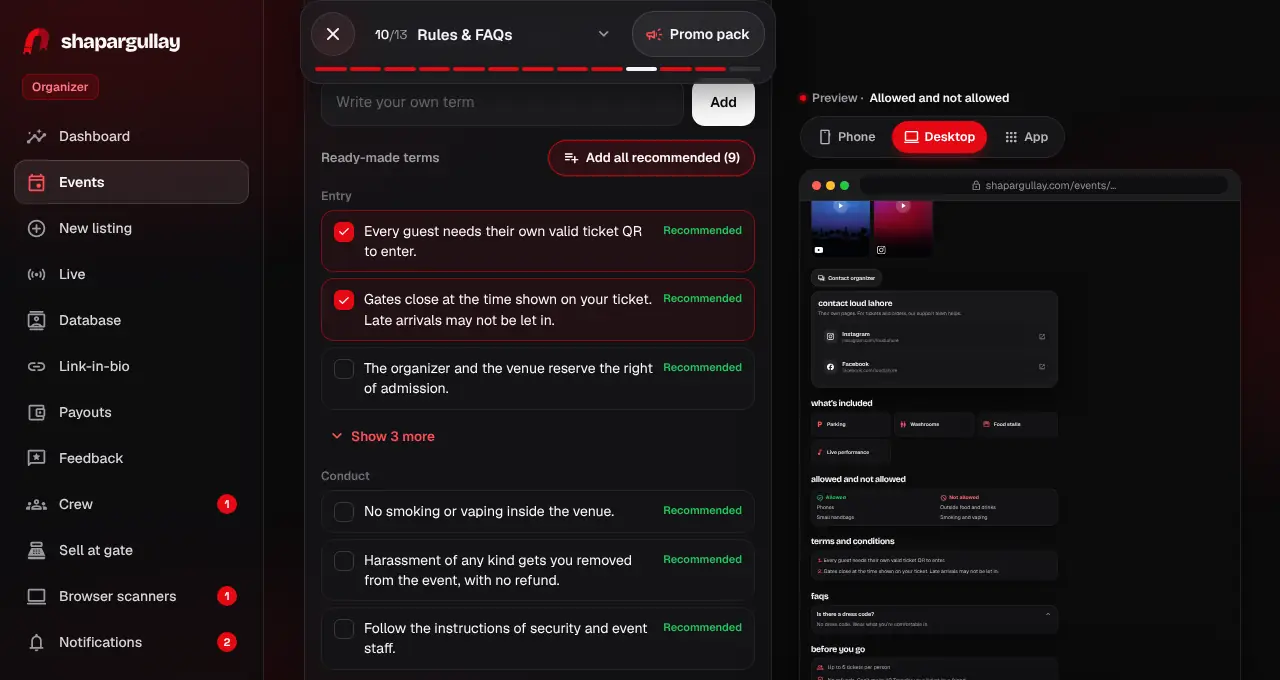
Terms and conditions: Add all recommended adds the standard ones; untick any you don’t want or add your own.
- 14
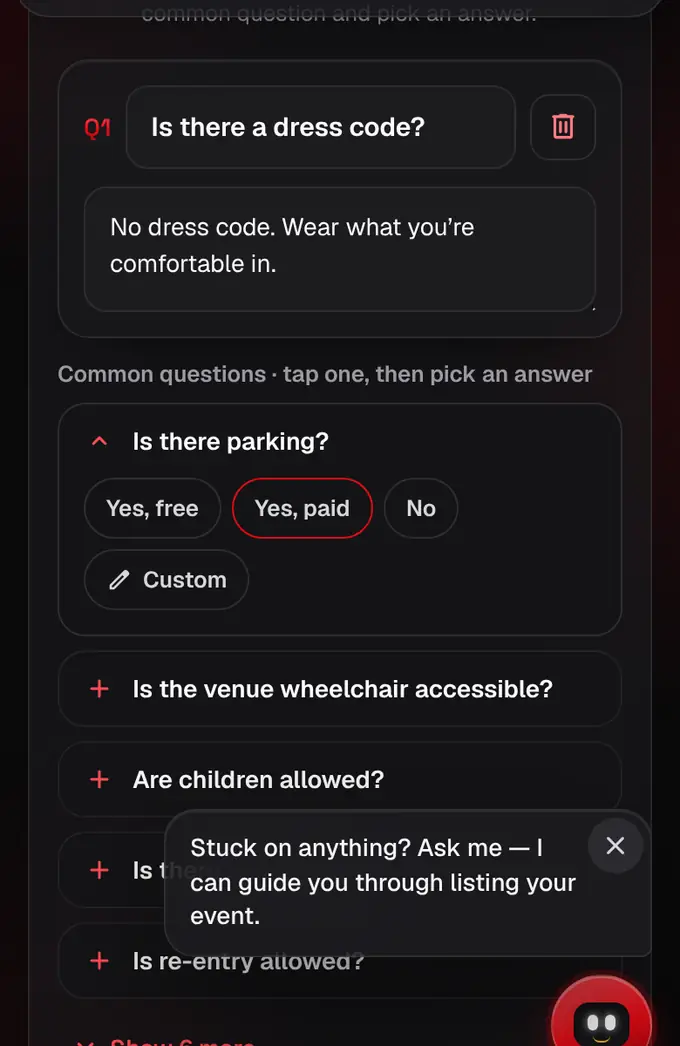
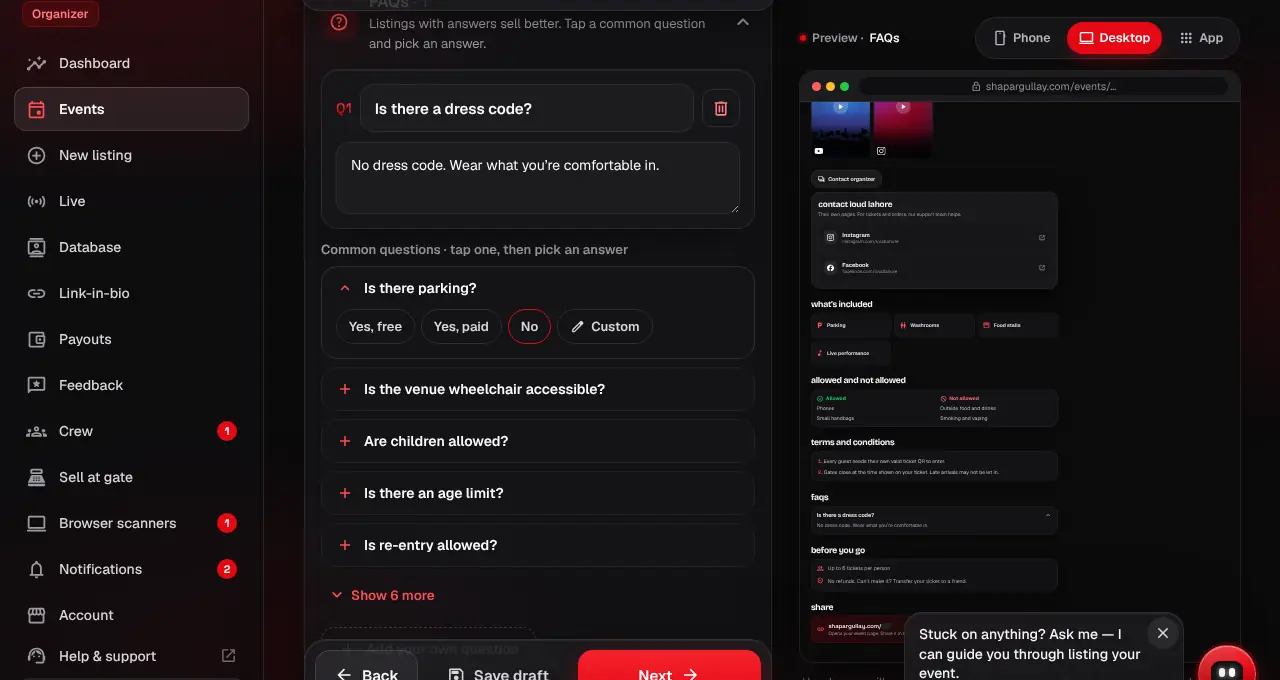
FAQs: tap a common question and pick a quick answer, or write your own. “Are tickets refundable?” always answers no refunds, transfer to a friend.
- 15
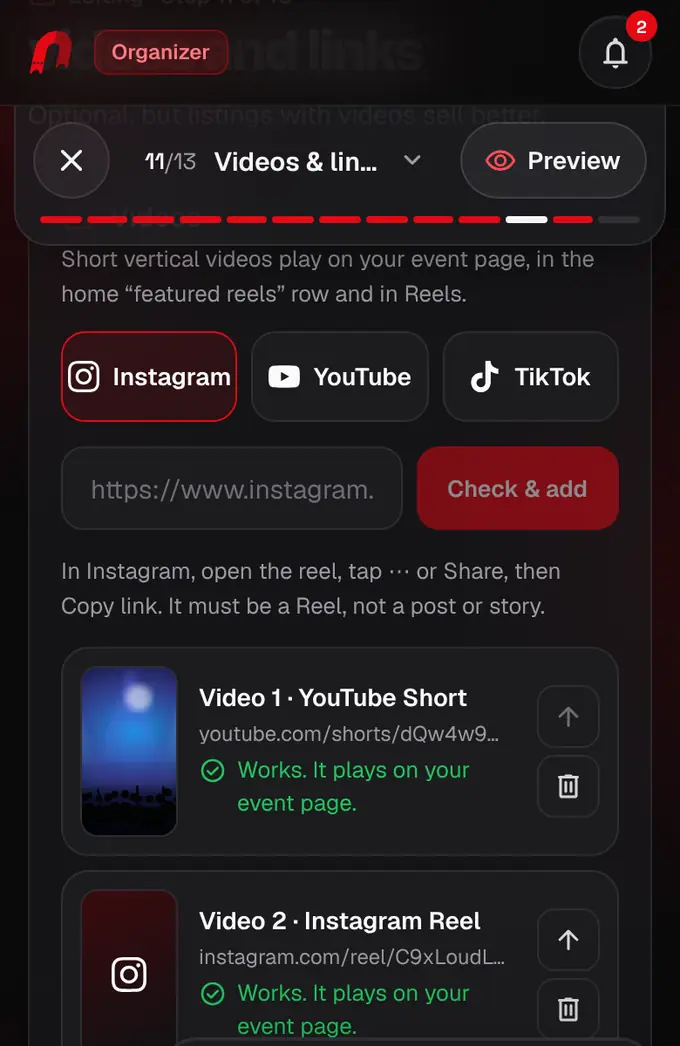
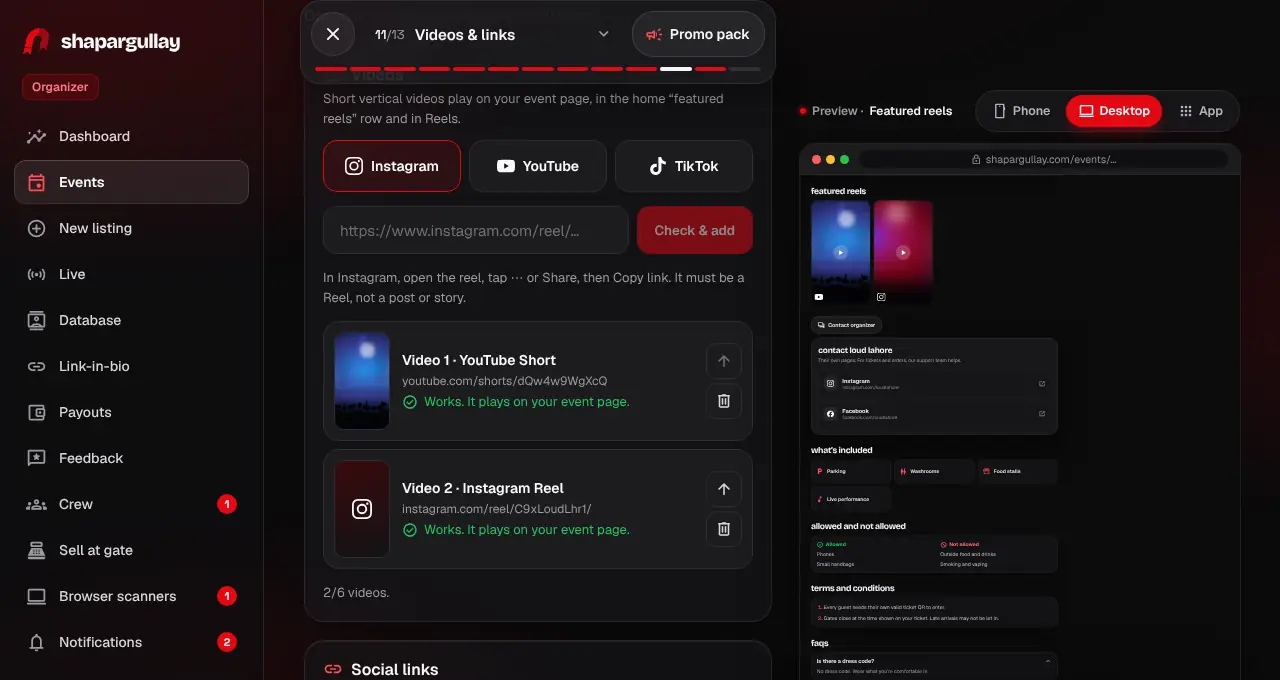
Videos & links (optional): pick Instagram, YouTube or TikTok, paste the link and tap Check & add. We tell you straight away if a video is private or can’t be shown.
- 16
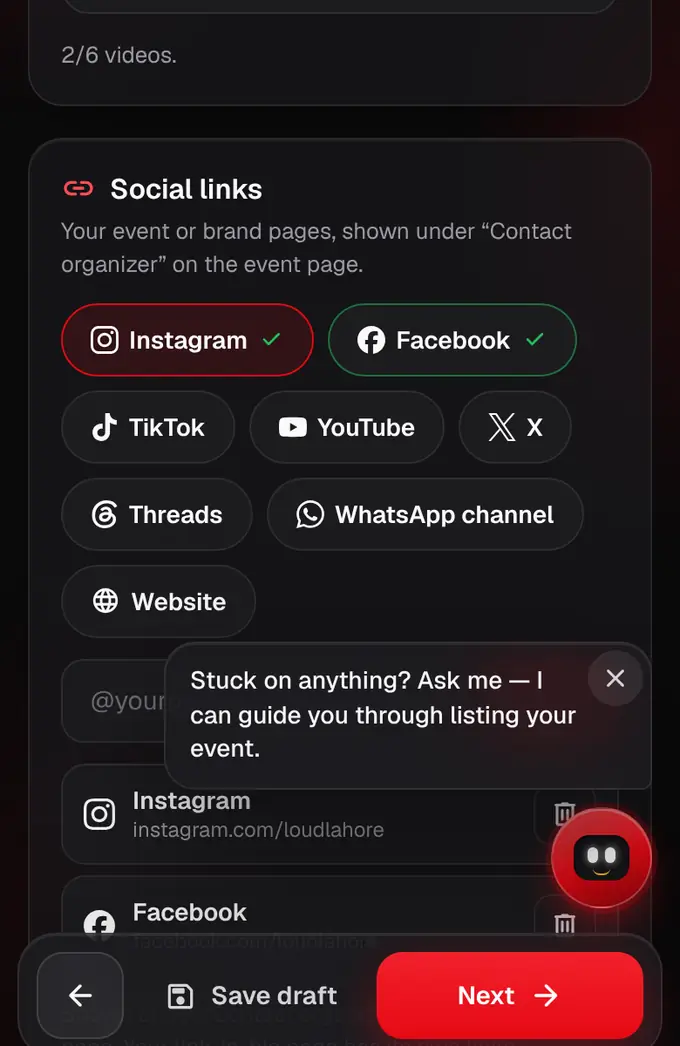
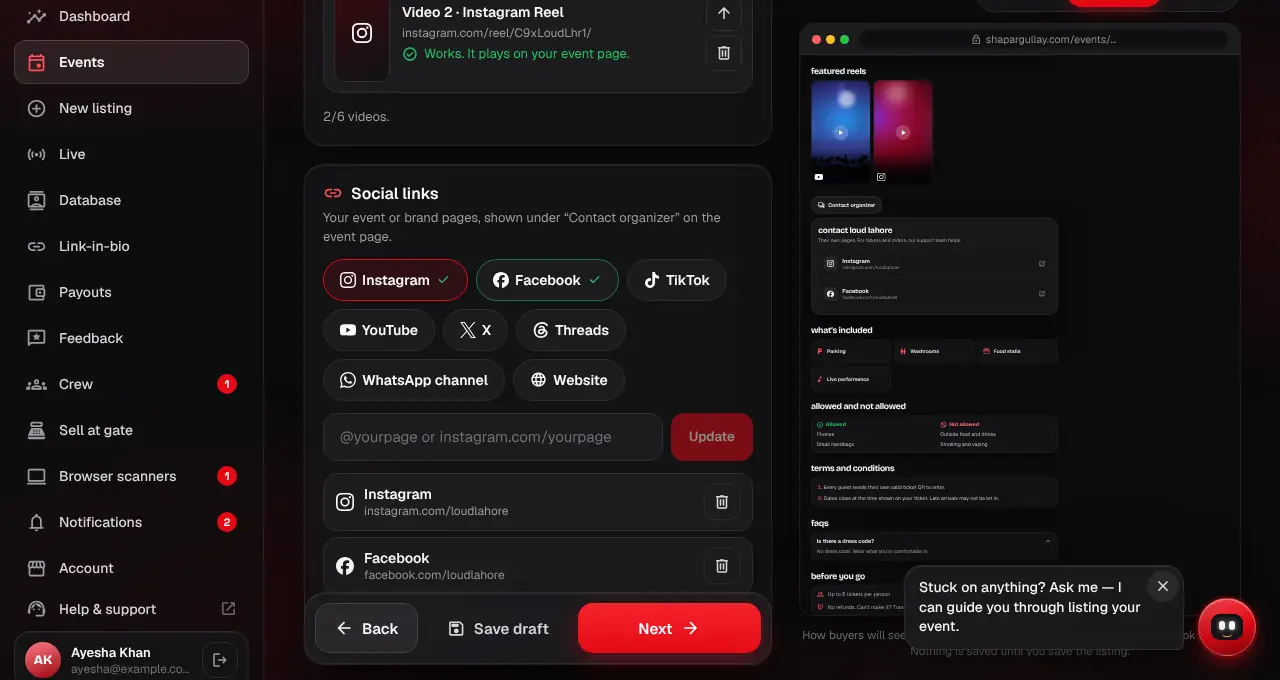
Social links: pick a platform, paste your page’s link and tap Add. They show under “Contact organizer” on your event page.
- 17
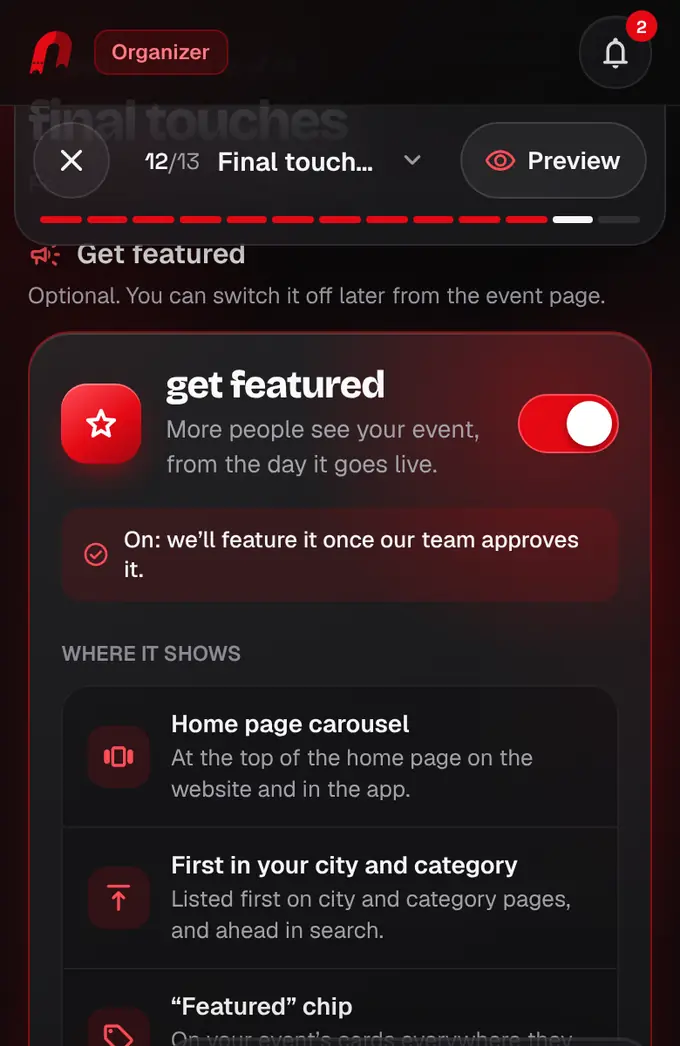
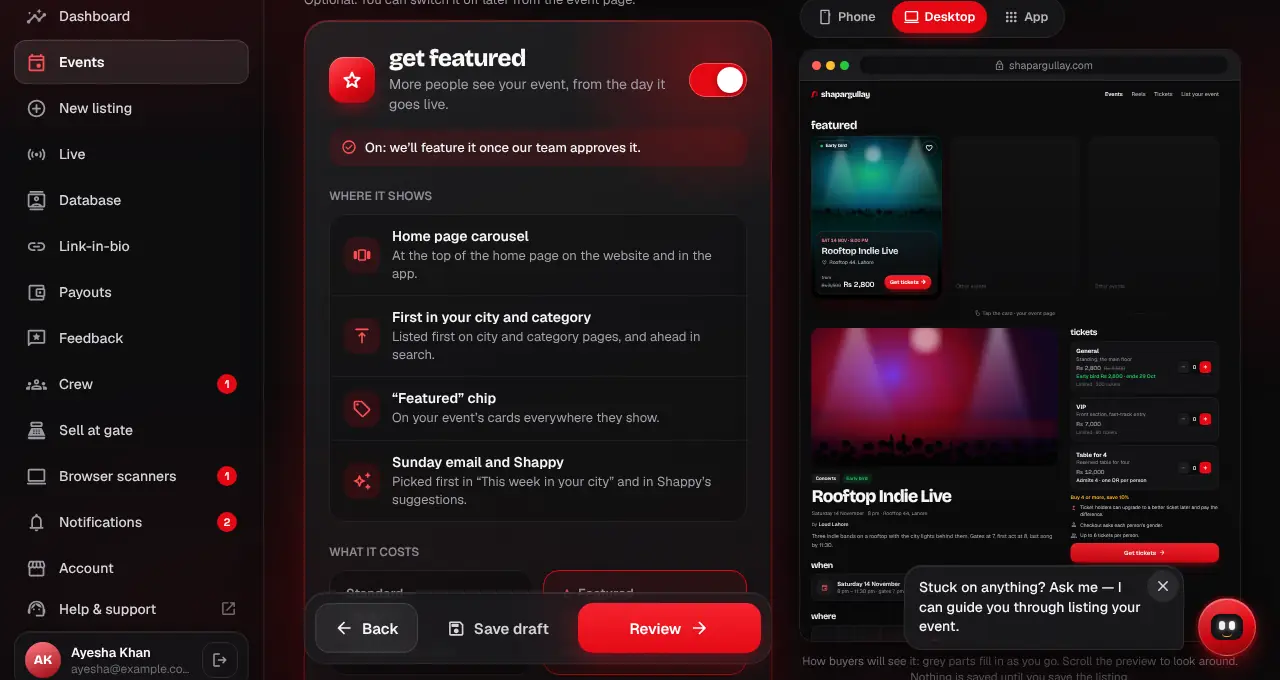
Final touches: want more buyers? Switch on Get featured: your event joins the home page carousel and shows first in its city and category. The fee on tickets sold while featured is 6% instead of 4%; switch it off any time. Here you also pick your short link and how buyers can pay.
- 18
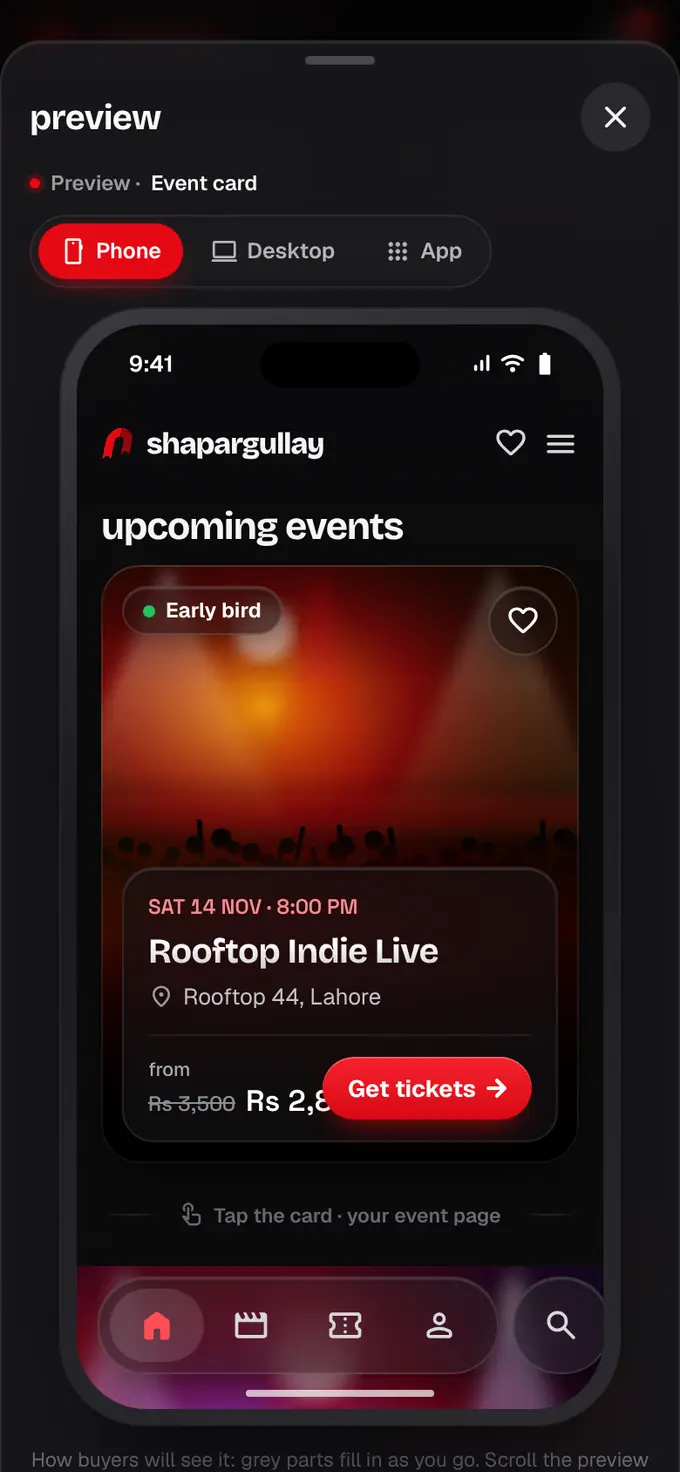
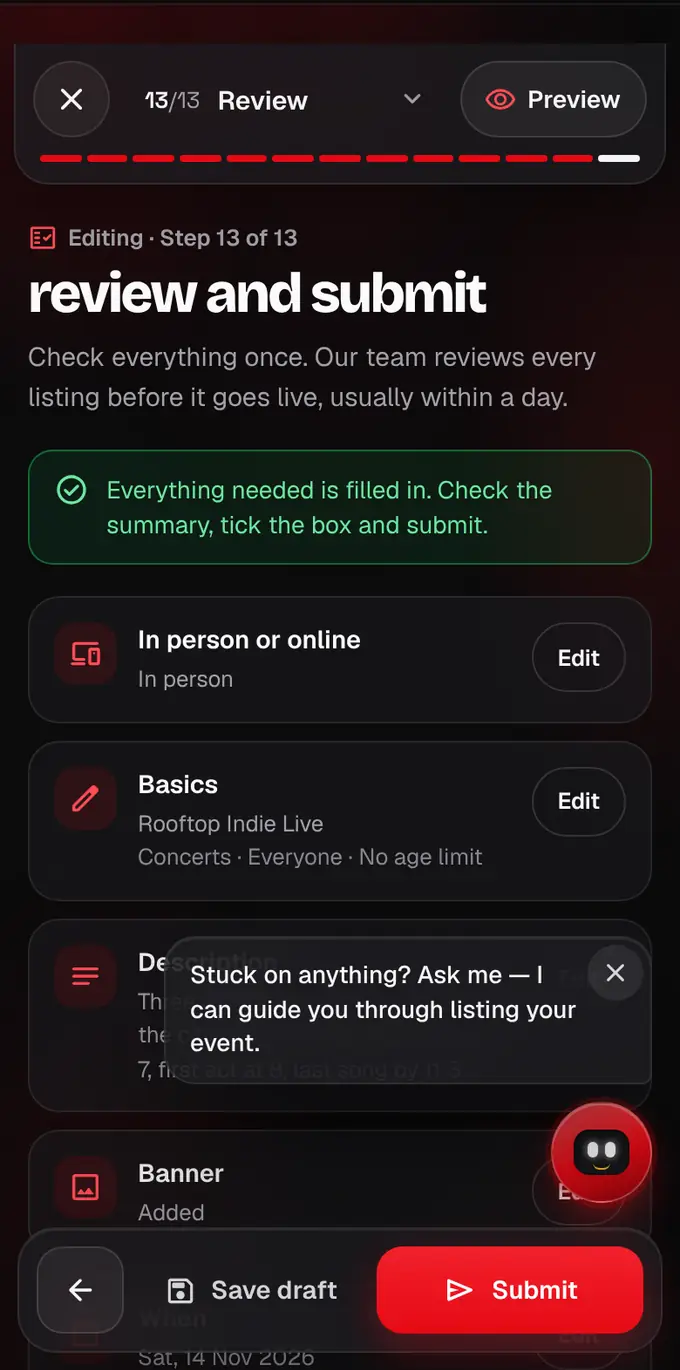
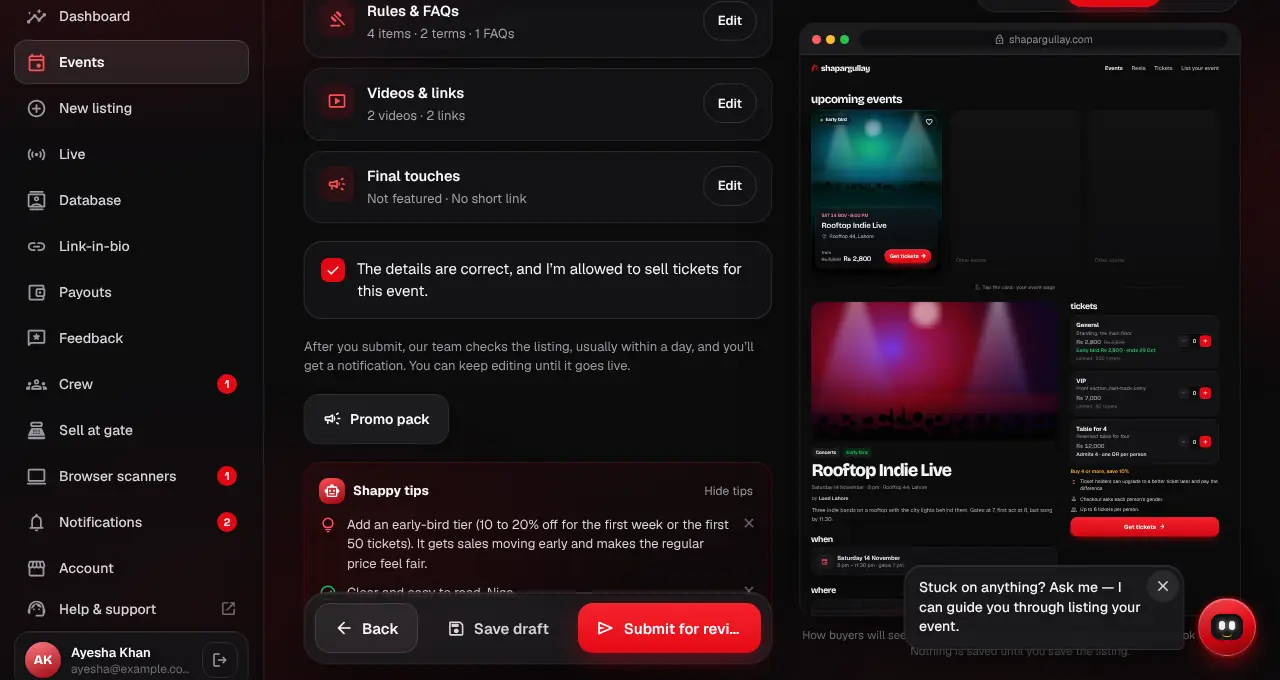
Check the live preview as you go: beside the form on a computer, or the Preview button at the top on a phone. It shows the part you’re working on as buyers will see it, on a phone, a computer or the app.
- 19
Review: every step is summed up with an Edit button, and anything still missing is listed with Fix. Tick the box to confirm the details, then tap Submit for review. Not finished? Save draft keeps it under Events so you can come back to it.
- 20
Your listing goes to our review team and shows as “In review” under Events at shapargullay.com/organizer, where you can still edit it until it goes live. First listing? You set up your organizer profile (brand and how you get paid) first, then come straight back to the review step.
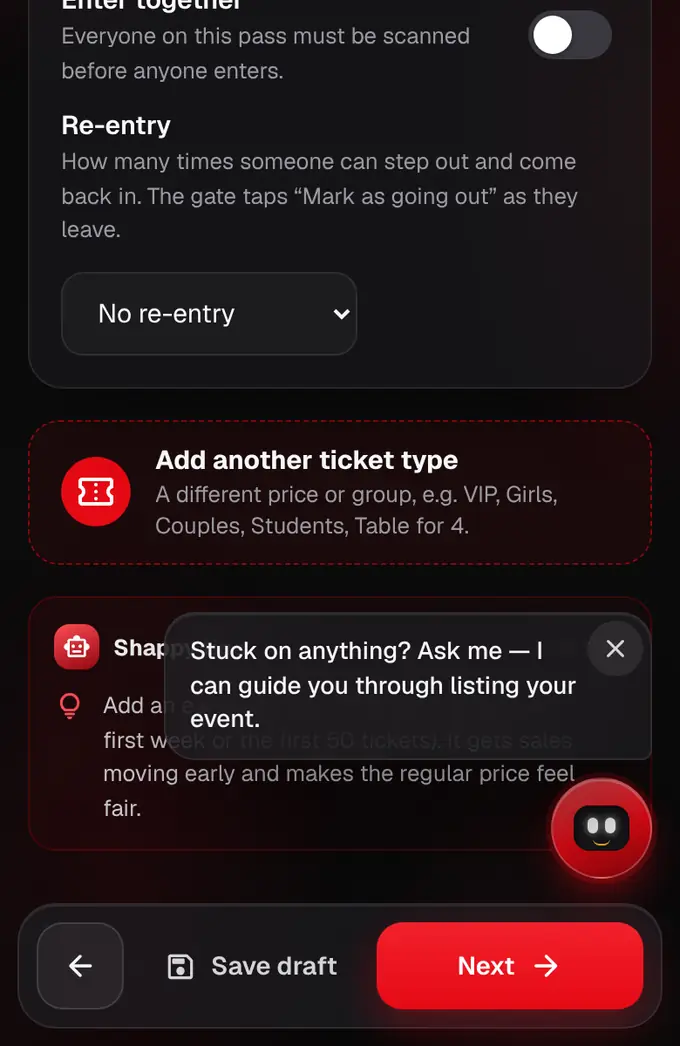
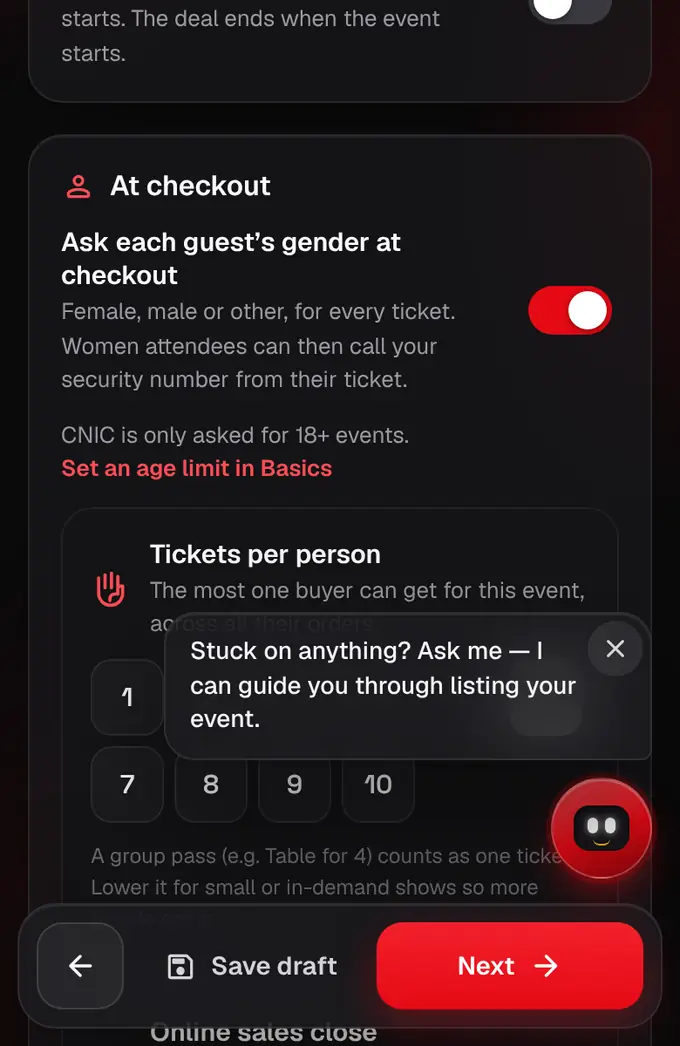
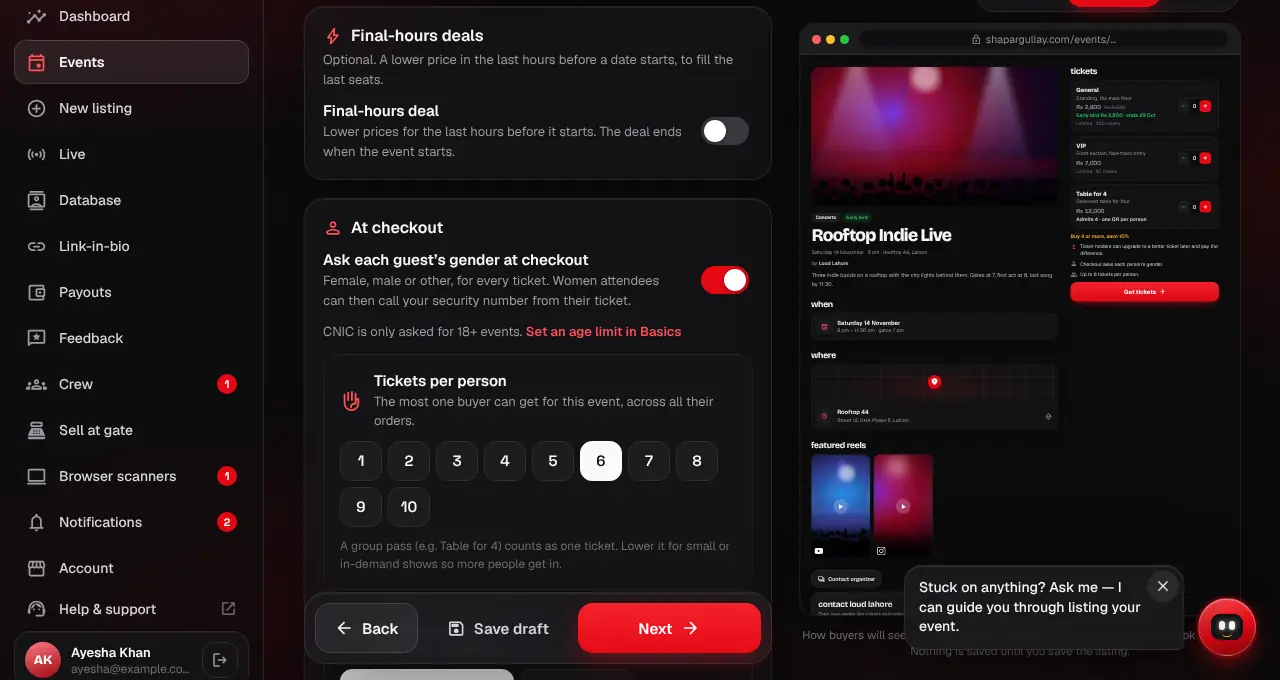
- Problems like a past date, an early-bird price above the regular price or a phone number in the wrong format show in red under the field as you type.
- The Shappy tips box on each step points out anything missing or unusual, like a long title or a price far above similar events.
- Next checks only the step you’re on: if something must be fixed first it says what and takes you there. Everything you type is kept on your device, so a refresh or a lost connection doesn’t lose it.
- You can also list and edit events in the Organizer app.
- Organizers list only their own events. Partner (resale) tickets from other platforms, like Ticketwala, are listed by the shapargullay team alone.