set up tickets, group passes and gates
Add a ticket type for every kind of guest, with its price, quantity and optional gate.
- 1
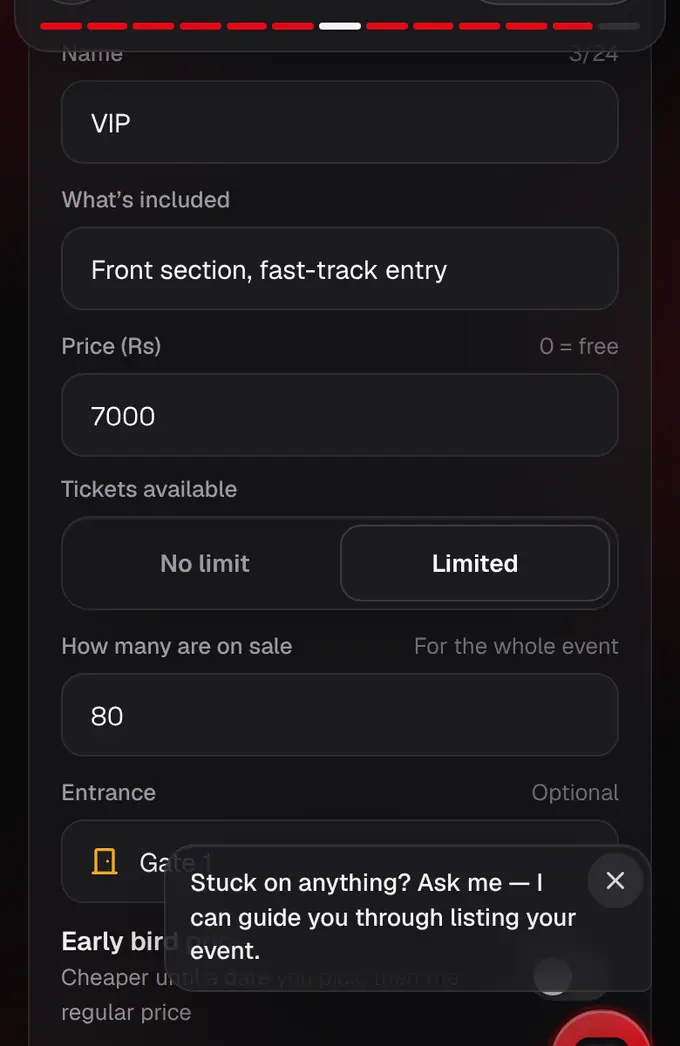
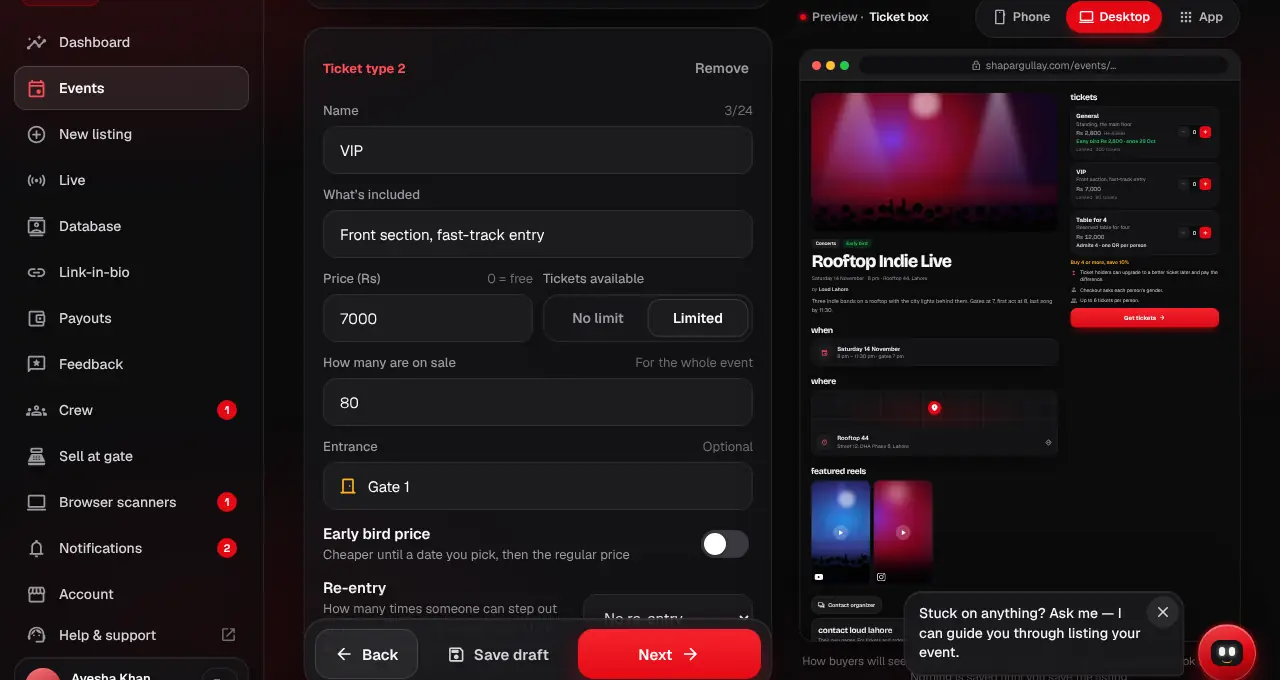
In the tickets section of the listing editor, give each ticket type a name (General, VIP, Girls, Couples, Table for 4…) and a price (0 = free). Then choose No limit, or Limited number and how many are on sale.
- 2
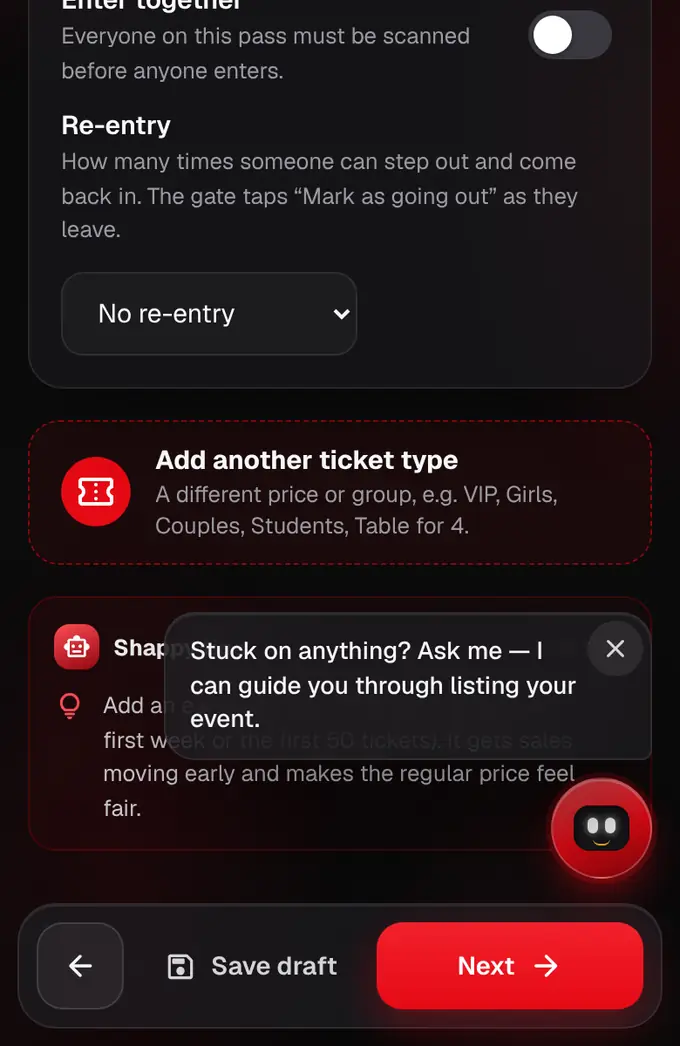
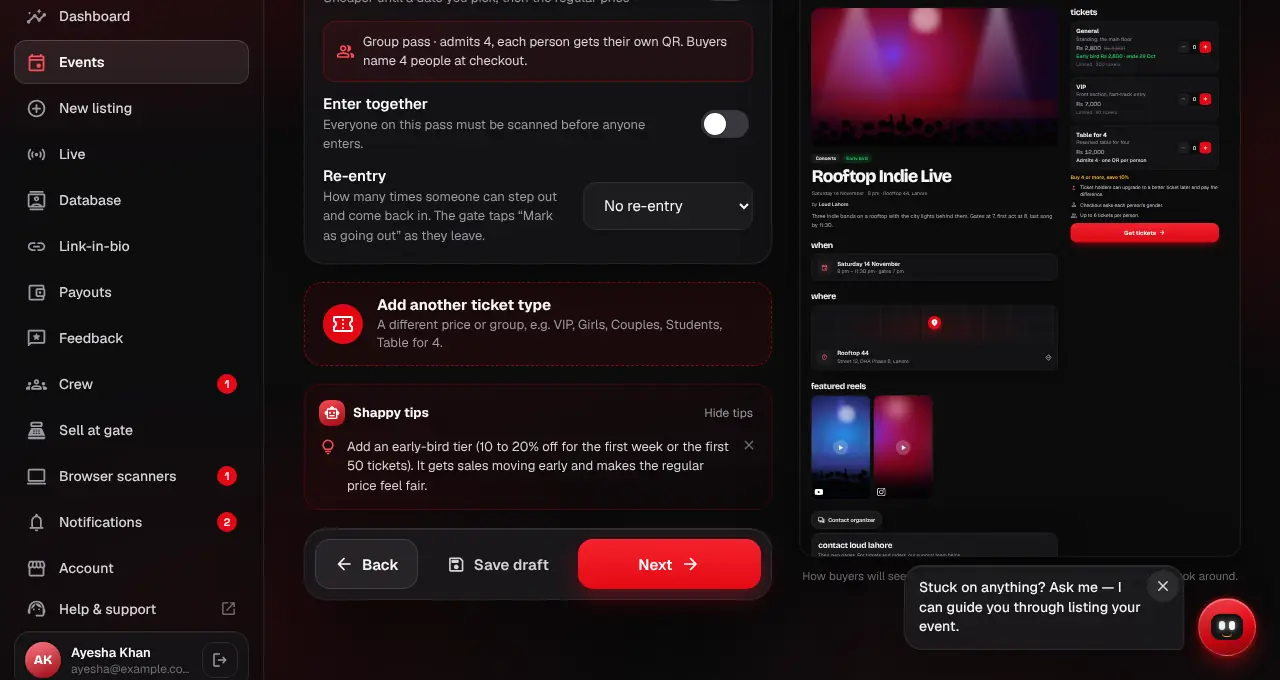
Tap “Add another ticket type” for each other kind of guest or price.
- 3
For group passes, say how many people it admits in the name, like “Table for 4”, “Couple” or “Family (up to 4)”. Buyers then name each person and everyone gets their own ticket and QR.
- 4
Guests using a separate entrance? In the listing editor at shapargullay.com/organizer (or the Organizer app), fill in that ticket’s Entrance (for example “Gate 4”). It shows on the event page, the ticket, the PDF and the scanner.
- 5
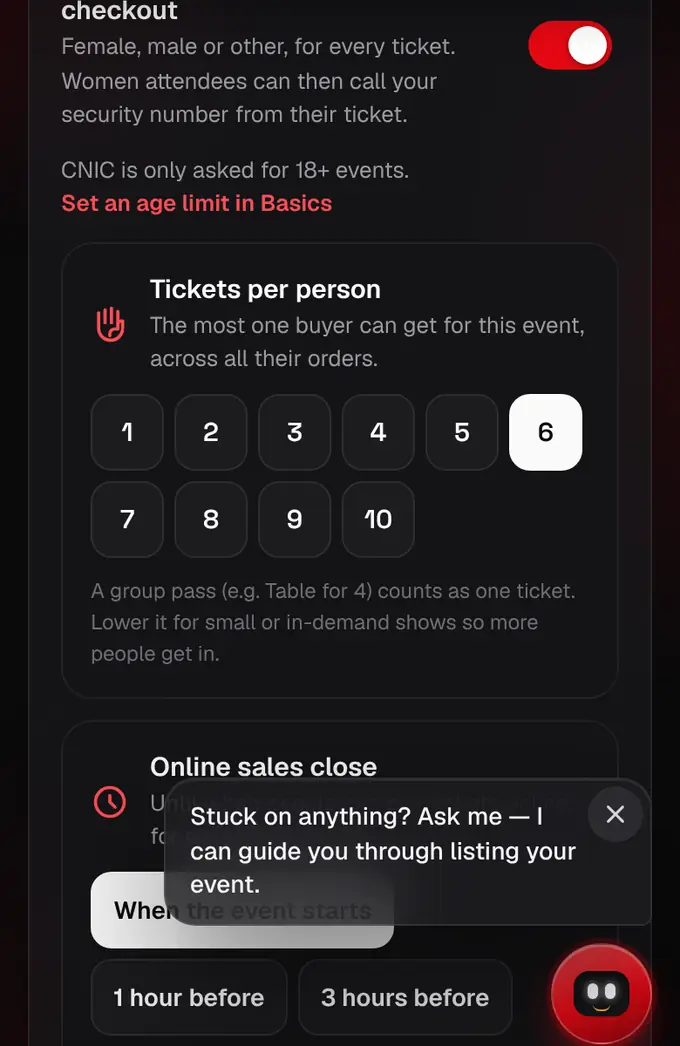
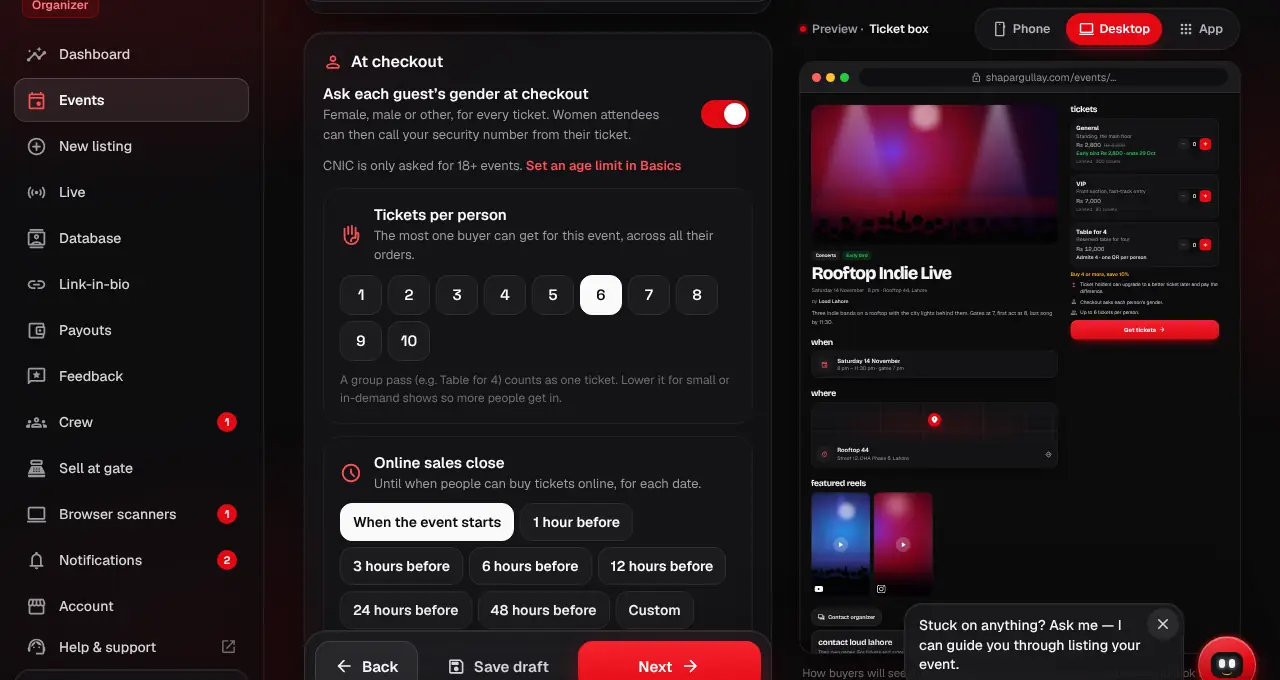
Under Ticket options, Tickets per person is the most one buyer can get for this event across all their orders: 10 unless you lower it (1 to 10). A group pass counts as one. Lower it for small or in-demand shows so a few people can’t buy everything.
- 6
Under Online sales close, pick until when people can buy online: when the event starts (the default), or 1, 3, 6, 12, 24 or 48 hours before, or a custom number of hours (up to 7 days). It counts back from each date’s start (for one event across several days, from day 1). Buyers see “Online sales close …” on the event page, then “Online sales closed”. Want to keep selling after the start instead? Turn on Sell at the gate (see “Sell tickets at the gate”). You can change it until the listing is live; after that, ask our team.
- For the same show on different days, each date gets its own tickets. For one event across several days, see “Events on several days”.
- Tickets bought at the gate after the start (Sell at the gate) are normal online orders: the per-person limit applies.